Google Business Profile
Google Business Profile Insights: Calls, Directions and Website Clicks Explained
Plain-English guide to Google Business Profile Performance metrics: views, search queries, calls, directions, website clicks, 3-day lag, and next fixes.
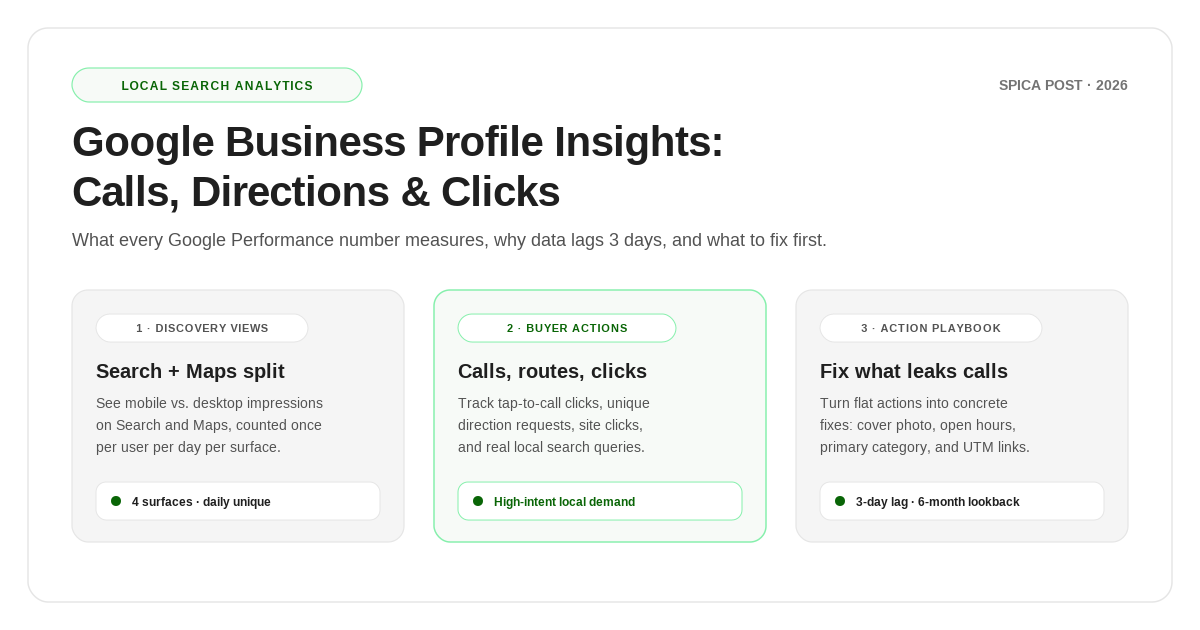
Google Business Profile insights (called Performance inside your Google Business Profile panel) tell you two plain things: how many nearby people discovered your listing across Google Search and Google Maps, and how many of them took a real buying action by tapping Calls, Direction requests, Website clicks, or enabled booking and menu links. Reading those five numbers together once a month reveals whether you have a visibility problem, a trust problem, or a landing-page problem, so you can fix the exact leak instead of guessing.
Too many small businesses and creators glance at one big Profile views chart, see a slight dip on a Tuesday, and panic without knowing how Google actually counts each metric or why the latest three days are not settled yet. Others stare at thousands of monthly views while the phone stays quiet, unaware that an outdated cover photo, wrong holiday hours, or a missing service entry is sending ready buyers straight to the listing sitting one inch below theirs.
Snapshot verified November 2026 against Google Business Profile Performance documentation, the Google Business Profile Performance API reference, and live Spica Post Results behavior. This guide breaks down every core Performance metric in plain English, explains Google’s 3-day reporting lag and 6-month lookback window, maps each diagnostic pattern to one concrete monthly fix, shows how to tag website clicks cleanly with UTMs, and explains honestly how Spica Post displays “On Google” performance alongside Google Search Console.
Every core Google Business Profile Performance metric, in plain English
Inside Google’s Performance view, every number falls into one of two buckets: discovery (how people saw you and what they typed) and buyer actions (what they tapped next). Treating discovery as health and actions as revenue keeps monthly reviews grounded.
| Performance metric | What Google actually counts | Important counting detail | Why it matters for a local business |
|---|---|---|---|
| Profile views (impressions) | People who saw your Business Profile across Search mobile, Search desktop, Maps mobile, and Maps desktop | Deduplicated to 1 view per user per day per platform | Measures local visibility and mobile vs. desktop discovery mix |
| Search queries | The actual words and phrases locals typed that showed your listing | Updated monthly; low-volume phrases are grouped for privacy | Reveals real local buyer language and unadvertised service demand |
| Calls | Taps on the Call button on your Business Profile | Counts button clicks, not answered conversations or manual dials | Strongest high-intent signal for clinics, repair shops, and service professions |
| Direction requests | Unique taps requesting driving, walking, or transit directions to your pin | Filtered by Google to remove duplicate taps, accidental cancels, and spam | Core foot-traffic indicator for storefronts, bakeries, salons, and restaurants |
| Website clicks | Taps on your primary Website button (plus bookings, menu, or food order buttons where enabled) | Counts outbound clicks; does not track on-site purchases without UTMs | Shows how well your profile pushes researchers into pricing, menus, or booking forms |
1. Profile views and impressions across four surfaces
Google splits total profile views across four distinct surfaces: Google Search mobile, Google Search desktop, Google Maps mobile, and Google Maps desktop. According to Google Business Profile Performance documentation, Google counts one unique view per person, per platform, per day. If a neighborhood resident looks up your bakery on Google Maps mobile at 8:00 AM to check parking and opens your listing again on Maps mobile at 11:30 AM to check your closing time, Google records one Maps mobile view for that day rather than inflating the count.
Comparing the four surfaces tells you how buyers shop your profession. Restaurants, coffee shops, auto repair bays, and walk-in clinics normally see the lion’s share of views on Maps mobile and Search mobile. B2B services, tax preparers, and commercial contractors often see a heavier Search desktop slice from office browsers. Knowing your dominant surface tells you whether to optimize first for quick thumb taps (mobile hours, Call button, exterior landmark photo) or deeper desktop research (clear Services list and fast booking page).
2. Search queries that triggered your listing
The Searches showed your Business Profile list is free local market research handed straight to you by Google. It lists the real words people typed before seeing your card: brand searches (your exact business name) alongside non-branded local searches such as “emergency dentist open Saturday,” “alterations near me,” or “spanish speaking tax preparer.”
Pay close attention to the ratio between branded and non-branded searches. Healthy local growth shows both climbing: branded queries prove word-of-mouth referrals and social media recall are working, while non-branded service queries prove Google understands your primary category, services list, and local relevance (see Google’s local ranking guidance and our near-me search guide).
3. Calls from the call button
Calls records every click on the Call button displayed on your Business Profile. That detail matters when owners reconcile Google’s report against front-desk reality:
- A click happens the instant a mobile user taps Call, even if they change their mind before confirming the dialer or hang up after two rings because nobody answered.
- Conversely, a desktop searcher who reads your phone number on a laptop screen and dials it manually on a cell phone never triggers a Call button click.
Because of both effects, treat Google Calls as a directional demand trend rather than an accounting invoice. If Calls rose noticeably month over month while booked jobs stayed flat, audit ring time, after-hours voicemail clarity, and whether your listed number still routes cleanly.
4. Direction requests and spam filtering
Direction requests counts unique requests to navigate to your storefront or office. Google explicitly filters out rapid repeat taps, canceled taps, and automated spam so one confused driver tapping “Directions” four times in a parking lot does not distort your chart.
Notice one structural distinction: service-area businesses that hide their residential address (such as mobile groomers, house cleaners, or roaming plumbers) will naturally show zero or near-zero direction requests because customers do not drive to them. For those professions, Calls and Website clicks are your primary scoreboard. For storefronts, pairing Direction requests with weekday vs. weekend foot traffic helps you spot whether a new exterior photo or updated Saturday hours brought more drivers to your door.
5. Website clicks, bookings, and menu taps
Website clicks counts clicks on your profile’s Website button. Depending on your primary business category, Google’s Performance panel may also show separate rows for Bookings (connected scheduling links), Menu clicks (restaurants and bakeries), Food orders, or Products viewed.
Every tap here represents a warm shopper who liked your star rating, hours, and photos enough to inspect your pricing, menu, or booking calendar. If Website clicks climb while actual inquiries stay quiet, your Google listing is doing its job and the bottleneck sits on your website’s mobile loading speed, unclear pricing framing, or buried contact button.
Timing quirks that trip owners up: 3-day API lag and 6-month lookback
Two built-in quirks of Google’s reporting architecture cause unnecessary panic every week. Understanding both saves hours of false alarms.
Why the last three days look low or incomplete
Google’s Business Profile Performance API does not finalize daily impressions and actions instantaneously. Because Google deduplicates unique daily views per surface and filters invalid clicks across millions of listings, reliable daily totals typically lag real time by about three days.
That is why checking “yesterday’s calls” inside an API-connected dashboard often looks artificially empty or incomplete, and why well-built reporting tools (including Spica Post’s Results view) deliberately end each rolling 7-day, 30-day, or 90-day comparison window three days ago. Comparing a settled 30-day window ending three days ago against the preceding settled 30-day window gives you an apples-to-apples trend with zero artificial end-of-chart cliff.
How to protect history before the 6-month native window rolls off
Inside Google’s own Search interface, Performance charts only keep six months of visible rolling history. If you run a seasonal business (landscaping, tax preparation, HVAC, holiday baking, swim lessons) and open Performance in November to check how last November performed, Google’s native screen will already have dropped last winter’s data.
The fix takes two minutes on the first Monday of every month: log your five totals (Search views, Maps views, Calls, Direction requests, Website clicks) plus your top five Search queries in a simple annual spreadsheet. After twelve months, you own a permanent year-over-year local demand ledger that Google cannot age out.
Why Google’s numbers never match your phone bill one-to-one
Even after the 3-day lag settles, your Google numbers will differ slightly from your carrier log, your website analytics, and your social insights. People call directly from your website after clicking through from Google, some browsers strip referral headers unless you use UTM parameters, and Google groups rare search terms for user privacy. For a broader look at why impressions, reach, and clicks behave differently across channels, read our guide on reach vs. impressions vs. views and whether social media is actually bringing customers.
Diagnostic action map: turning patterns into concrete fixes
Metrics only earn their keep when each pattern points to a single clear edit. Instead of tweaking ten settings blindly, match what your numbers did this month to the diagnostic grid below.
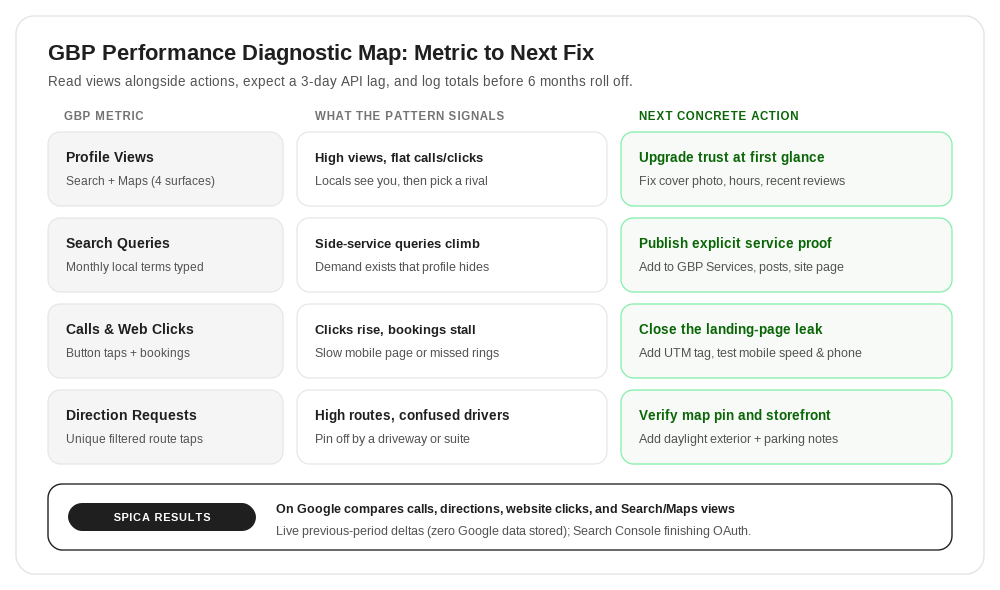
| Metric pattern this month | Most likely root cause | Concrete fix to run this week |
|---|---|---|
| High views + flat or falling calls and clicks | Locals see your card in Search or Maps, then pick a neighbor with stronger visual proof, fresher reviews, or clearer hours | Replace a dark or cropped cover photo with a bright daylight shot, verify every weekday and holiday hour, confirm your primary category, and request fresh reviews from recent happy clients |
| Low views across both Search and Maps | Incomplete profile, wrong primary category, missing service list, unverified status, or thin neighborhood relevance | Audit your Google Business Profile setup, add real secondary categories and individual services, and check our missing on Google Maps troubleshooting checklist |
| High search queries for a service you barely mention | Local buyers are actively hunting for a service you perform, yet your profile hides it | Add that exact service under GBP Services, publish one clear GBP Update about it, and create or expand its dedicated section on your website |
| Rising website clicks + flat inquiries or bookings | Google convinced the shopper to click, but your landing page stalls on mobile or hides the next step | Open your linked URL on a phone over cellular signal: put your city, core offer, hours, and booking button above the fold and tag the link with UTMs |
| Strong direction requests + confused drivers or thin reviews | Your map pin sits off by a driveway, entrance signage is unclear, or walk-ins are never invited to leave feedback | Drag your map pin onto the exact customer entrance, upload daylight exterior and parking photos, and place a clean review QR card at checkout |
| High Maps views + low Search desktop views | Healthy on-the-go discovery, light longer-research visibility | Expand your Google Business Profile description, add plain-English Q&As, and strengthen matching service pages on your website |
High views with flat calls or clicks
This is the single most common pattern among established local businesses. Visibility is already working, so spending money on ads or rewriting keywords misses the real leak. Open Google Maps on your own phone, search your top non-branded service phrase, and look at your card next to the three businesses beside you. Ask three blunt questions: does our main photo look welcoming and bright on a tiny thumbnail, are our hours clearly open right now, and do our newest three reviews carry thoughtful owner replies? Fixing your cover shot (see our Google Business Profile photo tips) and answering recent reviews warmly (see our Google review response guide) often lifts Calls and Website clicks within two to four weeks.
High search queries for a service you barely mention
Once a month, scan your Search queries list for surprises. A general auto shop often discovers dozens of monthly searches for “AC recharge near me” or “brake inspection” even though its profile description only mentions oil changes. A hair salon might see surging searches for “keratin treatment” or “curly cut.” Promote that proven local demand in three places at once: list it explicitly inside your GBP Services tab, publish a helpful Google Update or Offer post highlighting it (previewing the 120-character mobile fold first with our free Google Business Profile Post Previewer and reading our Google Offer and Event post guide), and ensure your website links straight to real details on that service.
Rising website clicks with flat bookings
When Website clicks climb without matching phone calls or form fills, stop editing Google and test your own website on a smartphone. Check three failure points: does the page load in under three seconds on normal cellular data, can a visitor see what you do and where you operate without pinching or scrolling past giant banners, and does the phone number or booking form actually work on Safari and Chrome? Every friction point removed on your landing page multiplies the return on every future Google click.
Strong direction requests paired with thin reviews
Busy foot traffic with an old or stagnant review count leaves easy local ranking strength unused. Place a clean checkout card or send a polite post-visit message linking directly to your Google review screen (never offering discounts or gifts for reviews, which Google’s policies strictly prohibit). Our guide on asking customers for Google reviews includes natural scripts that work across professions.
Customer privacy and explicit permission when adding visual proof
Uploading fresh storefront, workspace, and finished-project photos is one of the fastest ways to lift calls from existing views, yet privacy always comes first. Always ask explicit verbal or written permission before photographing or posting recognizable customers, families, children, private residential interiors, or vehicle license plates on your Google Business Profile or social channels. Bright, clutter-free shots of your sign, workspace, tools, dishes, and team members who opted in build just as much buyer confidence with zero privacy risk.
How to track Google website clicks cleanly with UTM tags
Google’s Website clicks metric tells you how many people left Google for your site, while your website analytics tells you what they did next (requested a quote, opened your menu, or booked an appointment). Connecting the two halves requires one tiny addition to the Website URL saved inside your Google Business Profile: clean UTM campaign tags per Google Analytics campaign URL guidelines.
Copy this simple structure and replace the domain with your own (or build it cleanly in our free UTM Builder):
https://yourbusiness.com/?utm_source=google&utm_medium=organic&utm_campaign=gbp_profile
If you publish weekly Google Business Profile Updates or Offers with a button link, give those posts their own campaign tag so you can compare main-profile clicks against post-button clicks separately:
Two quick hygiene checks keep UTMs clean: keep every parameter lowercase, and test the tagged URL in a private browser tab to confirm your website loads the exact same page cleanly without stripping the query string or triggering a redirect loop. Never put a third-party URL shortener in your main Google Business Profile Website field, because Google expects your real business domain there; reserve short links for social captions where space is tight.
Reading Google numbers inside Spica Post Results
Jumping between Google’s Search dashboard, your website analytics, and three social apps every month makes most owners stop checking numbers altogether. Spica Post brings your local Google performance right onto the same Results page you already use to track your social posts.
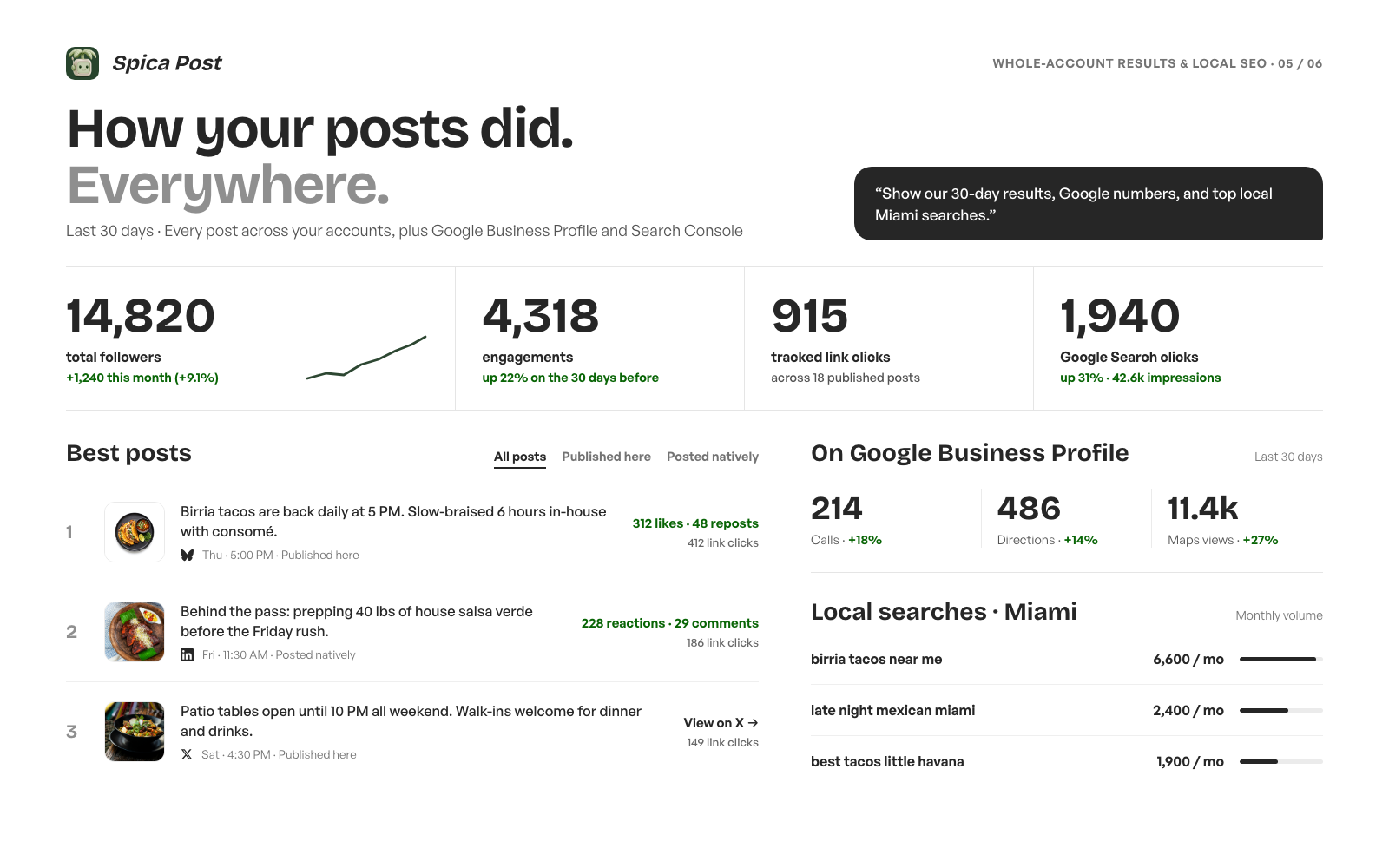
Here is exactly what Spica Post’s Results page and connected MCP assistant (results_google and results_get) show on Studio, Pro and Agency plans:
- “On Google” (Google Business Profile Performance): Shows your live Google Business Profile calls, direction requests, website clicks, and views split across Search and Maps for your chosen 7-day, 30-day, or 90-day period ending three days ago (respecting Google’s natural 3-day processing lag). In the exact same single Google Business Profile Performance API call, Spica Post also pulls the immediately preceding comparison window so you immediately see whether calls and clicks moved up or down versus the prior period. Spica Post caches readings briefly in memory and stores zero Google numbers in its database.
- “In Google Search” (Google Search Console): Built directly below “On Google” on the Results page to show your website’s organic Google Search clicks, impressions, click-through rate, average position with previous-period deltas, top 10 search terms, and top 10 landing pages, without using one of your social posting account seats.
Real trade-offs and current status (November 2026)
In keeping with honest reporting on Spica Post’s live workspace status for small businesses and creators:
- Google Business Profile API status: Google approved Spica Post’s Business Profile API access and enabled v4 in production in November 2026, with the
On GooglePerformance reader, multi-profile rollups, and GBP post/review tools built and tested. The final operational step before broad live customer publishing and readings is completing the first live service-area profile verification (tracked in Spica Post’s live status). - Google Search Console status: The read-only Search Console adapter (
In Google Searchon/resultsplussearch_console_*MCP and REST tools) is built and tested, and live customer connection waits on Google’s final OAuth verification forwebmasters.readonlybefore the Connect button activates in production. - What Google Business Profile does not report: Google’s Performance API reports profile-level views and actions (and does not expose individual post-level likes or detailed per-post click counts inside Results). Pairing your GBP profile link and post CTA buttons with clean UTM tags closes that visibility gap completely. For flat workspace plan details covering Results and multi-location rollups, visit our pricing page.
A 15-minute monthly Google Performance checklist
Block fifteen minutes on the first Monday morning of each month to turn Google insights into steady local revenue:
- Set a settled 30-day window ending three days ago (2 minutes): Compare Calls, Direction requests, Website clicks, and Search vs. Maps views against the prior 30-day period, and copy those totals into your simple 12-month spreadsheet before Google’s 6-month lookback rolls off.
- Audit your top 10 Search queries (3 minutes): Highlight one high-intent service phrase you barely mention today and schedule one matching Google Update plus a quick check of your GBP Services list.
- Inspect your views-to-actions ratio (3 minutes): If views rose while actions stayed flat, open your listing on a smartphone beside local competitors and upgrade whichever trust signal lags most (cover photo, hours, primary category, or unanswered reviews).
- Reconcile Calls and Website clicks with real desk outcomes (4 minutes): Compare Google Calls against answered calls and check your UTM-tagged Google landing-page visits in website analytics to spot missed calls or slow mobile pages.
- Refresh two real proof signals (3 minutes): Upload two fresh daylight photos (always confirming customer permission before showing any identifiable person or private property) and answer every recent Google review warmly.
Views flatter your ego; calls, direction requests, and website clicks pay the rent. Check those five numbers once a month after Google’s 3-day window settles, fix the single biggest bottleneck they expose, and watch your local map presence compound quietly all year.
Questions people ask
- How does Google count Profile views in Business Profile Performance?
- Google splits profile impressions into four surfaces: Google Search on mobile, Google Search on desktop, Google Maps on mobile, and Google Maps on desktop. Google deduplicates views so one person who sees your listing several times on the same platform in one day counts once for that day and platform.
- Does the Google Business Profile Calls metric count answered calls or button clicks?
- Calls counts every click on the Call button shown on your Google Business Profile, not whether the person completed the call or stayed on the line. Because someone can tap Call and hang up before ringing finishes, or dial your number manually off a desktop screen, compare Google Calls against your actual phone log each month.
- Why are the last two or three days missing or low in Google Business Profile insights?
- Google's Business Profile Performance reporting runs roughly three days behind real time while Google processes deduplication and spam filtering. Checking a report that ends three days ago avoids mistaking normal processing lag for a sudden traffic drop.
- How far back can I view Google Business Profile Performance history?
- Google's native Performance dashboard inside Search displays up to six months of rolling history. Exporting or recording your monthly totals once a month ensures you can compare seasonal swings year over year without losing last winter's baseline.
- What should I fix first if my profile has high views but very few calls or website clicks?
- High views paired with weak actions usually point to a first-impression gap rather than a search ranking failure. Check your primary cover photo, verify your exact opening hours (especially evenings and weekends), confirm your primary category matches your core service, and examine whether your newest five reviews look recent and warmly answered.
Sources
- Google Business Profile Help: Understand your Business Profile performance and insights
- Google Developers: Business Profile Performance API reference
- Google Business Profile Help: Tips to improve your local ranking on Google
- Google Analytics Help: URL builders and campaign UTM parameters
- Spica Post Google Business Profile guide: updates, reviews, and On Google insights