Google Business Profile
Google Business Profile for Service-Area Businesses That Work From Home
Hide your home street address publicly, set up to 20 nearby service areas, avoid virtual-office suspensions, and pass video verification cleanly.
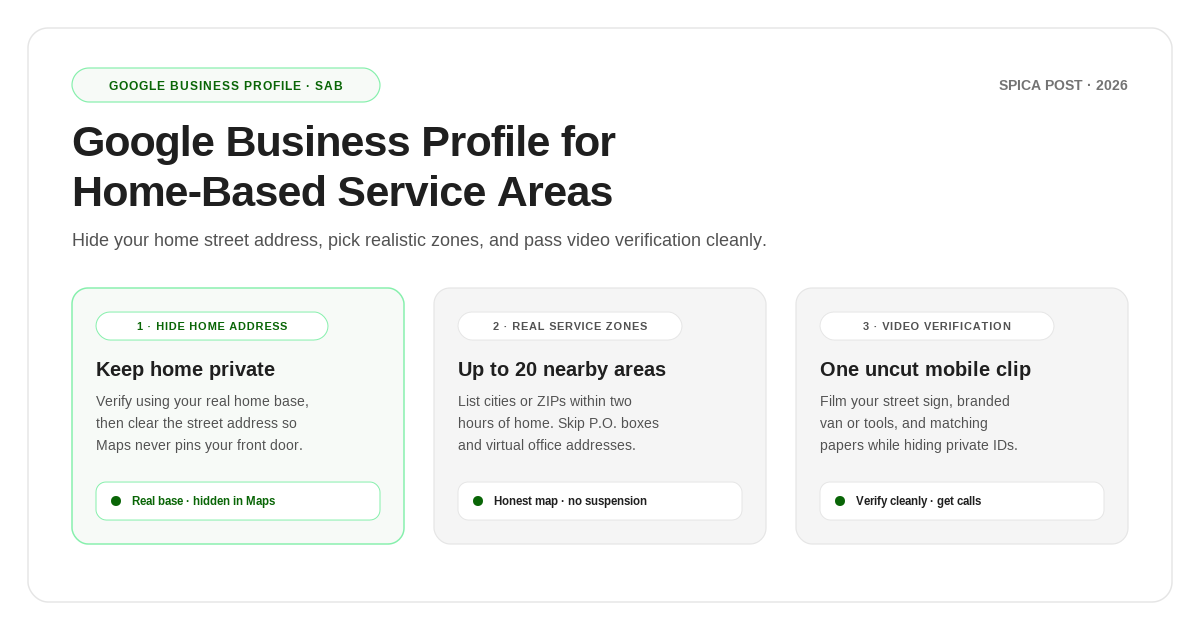
To set up a Google Business Profile service area business when you work from home, enter your real residential address privately during verification, clear the street address toggle so your house never displays a public pin on Google Maps, list up to 20 realistic nearby cities or ZIP codes within roughly two hours of driving, never rent a P.O. box or virtual coworking office, and pass Google’s uncut mobile video verification by filming your street sign, your real work tools or vehicle, and matching business registration papers. Done cleanly, your family’s home stays completely private while local customers searching “near me” still find your phone number and reviews right at the top of Google.
Millions of small businesses and creators run serious, licensed local operations without leasing a retail storefront. Plumbers, electricians, HVAC technicians, house cleaners, mobile mechanics, landscapers, mobile pet groomers, in-home tutors, cottage-law bakers who deliver locally, wedding and portrait photographers, and on-site consultants all meet customers face to face at the customer’s door rather than behind a glass counter.
Yet home-based owners run into the same three fears every time they open Google Business Profile: accidentally publishing their residential address to strangers on the internet, getting trapped in an endless suspension loop because someone online told them to rent a UPS mailbox, or failing Google’s live video verification because they do not own a neon storefront sign. This guide follows Google’s official Service-Area Business (SAB) documentation step by step so you set up your profile once, protect your privacy, pass verification cleanly, and win local Maps calls without a storefront.
Storefront vs. hybrid vs. pure service-area business: pick the right setup
Google’s representation guidelines divide eligible local businesses into three strict models based on one real-world test: Can a customer walk up to your address during stated business hours and meet your staff under permanent business signage?
| Profile model | Who qualifies under Google guidelines | Public street address on Maps? | Typical home-based fit |
|---|---|---|---|
| Storefront business | Brick-and-mortar shops, restaurants, clinics, and salons with permanent exterior signage and staff on site during listed hours | Yes (pin shown publicly) | Only if you have a permitted, permanently signed studio/office where walk-in clients visit regularly |
| Hybrid business | Businesses that BOTH host walk-in clients at a staffed, signed location AND travel out to customers (e.g., an auto shop with mobile tow service) | Yes (pin + service areas) | Rare for residential homes unless zoning, permanent signage, and staffed walk-in hours all exist |
| Pure service-area business (SAB) | Mobile and home-based pros who travel to clients or deliver locally and do not receive walk-in traffic at their house | No (address cleared publicly; service zone outlined instead) | The right, compliant choice for almost every home-based service business |
Notice one critical boundary in Google’s guidelines: purely online businesses that never make in-person contact with customers (such as remote e-commerce shops or online-only courses) are not eligible for a Google Business Profile at all. You qualify as a service-area business because you genuinely meet local clients in person, whether you repair their furnace, clean their living room, tune their piano, photograph their family at a local park, or hand-deliver local catering trays.
How to hide your home address cleanly while staying verified
Many home-based owners hesitate to enter their real house address during setup because they worry it will instantly publish to Google Maps. Understanding the split between what Google keeps privately for verification and what customers see on Maps clears up that worry immediately.
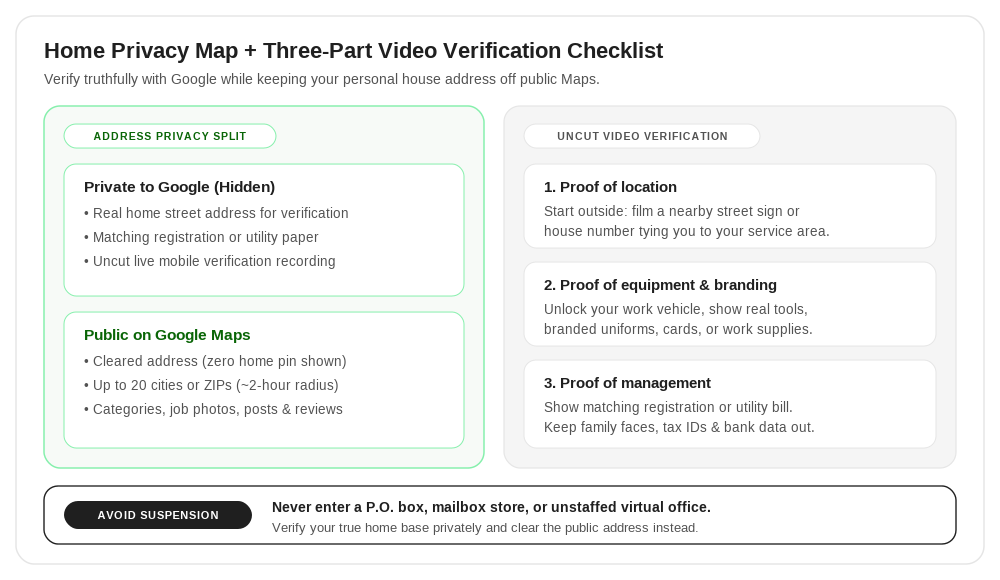
Step-by-step: clearing your street address in Google Business Profile
- Create or claim your profile under a permanent business Google Account using your exact real-world business name (the name on your state registration, van door, and invoices, with zero extra cities or keywords stuffed into the name).
- When Google asks whether you want to add a location customers can visit, select No (if creating a new SAB from scratch). Google will still ask for a real street address privately later purely to confirm where your business operates and to process verification; that private address stays hidden when you choose the service-area setup.
- If you already created a profile that accidentally displays your house, open your Business Profile directly in Google Search, click Edit profile -> Location -> Business location, toggle off Show business address to customers, and save. Wait patiently if Google asks you to re-verify; never edit five fields back to back while verification is pending.
- Verify that your home pin vanished. Once verified and live, search your business name on Google Maps in an incognito window. Customers should see your business name, star rating, phone button, website, hours, and a shaded outline of your service region with zero street address and zero pin on your home block.
Setting realistic service areas (up to 20 zones, never the whole state)
Per Google’s service-area management guide, you can list up to 20 service areas using cities, postal/ZIP codes, counties, or named regions, and Google advises keeping the overall outer boundary within roughly two hours of driving time from where your business is based.
Keep your zone honest and tight:
- Start with your core 5 to 12 nearby cities or ZIP codes where you actually accept jobs every week without charging long-haul travel surcharges.
- Avoid claiming an entire state or country. Selecting “Texas” or “Florida” does not make you rank two hundred miles away; Google still weighs proximity to your verified home base heavily, and sprawling nationwide zones look like spam to automated review systems.
- Remember you can adjust your service areas later once verified as your crew grows, though make changes thoughtfully rather than editing location settings every week.
Four address traps that trigger immediate suspensions
Google’s automated spam filters scrutinize home-based service-area profiles closely because lead-generation farms routinely try to flood Google Maps with fake local listings. One shortcut below can lock your legitimate business out of Google Search for weeks while you file reinstatement appeals:
- Using a P.O. box or commercial mailbox store (UPS Store, Pak Mail, virtual mail drop). Google explicitly disqualifies mail-receiving centers and P.O. boxes. Even if the store tells you “You can write Suite 204 instead of Box 204!”, Google’s address database already flags commercial mail-receiving agencies automatically.
- Renting an unstaffed virtual coworking office. A $49/month virtual office address where a shared receptionist signs for envelopes does not qualify as a storefront or hybrid location unless you lease dedicated private space with permanent business signage and your own team staffed there during open hours.
- Showing your home address publicly to chase a Map pin. Leaving your residential street visible when customers never visit your home violates Google’s guidelines directly and invites competitor edits (“This is a private house”) that suspend your profile overnight.
- Stuffing cities or services into your business name. Writing “Apex Plumbing · Best 24/7 Emergency Drain Cleaning Miami & Broward” instead of “Apex Plumbing” breaches Google’s name policy and triggers both algorithmic suspensions and manual denials during verification. For foundational naming and category checks, read our full Google Business Profile setup guide.
How to pass Google video verification as a home-based or mobile business
Today, Google frequently requires live video verification for new or edited service-area businesses (official Google video verification help). Because you do not have a retail storefront with a permanent awning, the secret to passing on your first try is rehearsing a calm, continuous 60 to 90 second uncut recording straight inside Google’s mobile verification screen that proves three exact things: location, operations, and management.
Before pressing Record: stage your 60-second route
Google rejects pre-recorded files uploaded from your camera roll and requires one continuous, unedited clip recorded live through the Business Profile verification tool (Google recommends at least 30 seconds and generally under two minutes so the upload never stalls). Walk your route once before pressing Record:
- Park your work vehicle right outside your house with your keys in your pocket and any magnetic door signs, ladder racks, or organized tool bins clearly visible.
- Set two clean official papers on your desk or kitchen table inside the door: your state LLC/DBA business registration or professional license, plus a recent business invoice, insurance certificate, or business utility bill showing the exact business name and home base address you entered in Google.
- Protect your family’s privacy before filming. Cover or fold away bank account numbers, Social Security or EIN numbers, personal tax returns, credit cards, and family photos. Make sure children, spouses, or neighbors do not walk across the camera frame.
The exact 3-part walk-through to film in one continuous take
- Seconds 0 to 20 (Proof of location): Start outside on your street in daylight. Pan cleanly over the nearest street name sign or recognizable neighborhood landmark, then walk up to your house number or mailbox so Google’s reviewer can confirm your physical operating base matches your private verification address.
- Seconds 20 to 50 (Proof of equipment and real business activity): Without stopping the recording, walk straight to your work vehicle, visibly unlock the door or tailgate with your key, and pan calmly over your real tools, equipment, cleaning caddy, photography gear, bakery delivery crates, branded shirts, or printed business cards. If you work from a dedicated home desk without a work van (such as a local tutor, bookkeeper, or on-site consultant), walk inside to your workstation showing branded materials, client workbooks, and live business software or booking calendar on your screen.
- Seconds 50 to 80 (Proof of management): Finish at your desk by holding the camera steady for four to five seconds over your matching business registration document and business invoice or utility bill so the business name and address are sharp and readable, with all sensitive account numbers covered.
Stop recording, upload on steady Wi-Fi, and then do not edit your business name, category, phone number, or address while Google reviews the clip (typically up to five business days). Touching core profile fields mid-review often resets verification back to square one.
How service-area businesses still win top local Maps calls
Hiding your residential street address does not trap you on page three. According to Google’s local ranking factors guide, visibility rests on relevance, distance, and prominence. Since distance is anchored quietly to your verified base and the searcher’s location, your highest leverage sits in sharpening relevance and building steady prominence every month.
Dial in your primary category, secondary categories, and itemized services
Your primary category is the single strongest relevance lever on your entire profile. Pick the sharpest exact match for your core revenue (“Emergency plumber”, “House cleaning service”, “Mobile mechanic”, “Landscape designer”, “Wedding photographer”) rather than a broad vague bucket. Add only genuine secondary categories that match real work you do year-round, then fill out the Services tab line by line with plain customer phrasing (“Water heater replacement”, “Move-out deep cleaning”, “Brake pad replacement at your driveway”) and short plain descriptions. Pair this with strong website service pages as explained in our guide on how to show up in near-me searches.
Upload bright job-site photos with explicit homeowner permission
Home-based businesses cannot upload glossy lobby interiors, and you should never upload photos of your family’s living room. Instead, upload two to four fresh, sharp daylight photos every month showing real work in action (Google business photo tips): your neatly lettered work truck parked curbside, tidy finished installations, freshly edged lawns, gleaming cleaned ovens, or packed catering platters.
Always ask the homeowner or customer for explicit permission before photographing or publishing any part of their property, home interior, yard, vehicle, or family. Even with permission, frame carefully so you never expose a homeowner’s street number, gate keypad code, security camera placement, family photographs on walls, or vehicle license plates. For framing checklists built specifically for field pros, see our job-site photo guide for social media.
Publish one steady weekly Google Business Profile update
An active profile signals to both Google and cautious homeowners that your business is open, booked, and answering calls today. Aim for one clean update per week (100 to 250 words, one bright daylight photo, one clear Call Now or Book button) covering seasonal prep, a recent neighborhood job, or open appointment windows. Remember Google’s mobile fold shows roughly the first 100 to 120 characters before truncating, so put your service and city up front. You can test exact formatting and character limits free right now with our no-login Google Business Profile Post Previewer.
Collect city-mentioning reviews honestly (never pay for them)
Reviews power both Map Pack prominence and phone-call conversion when a homeowner compares three nearby pros. Send your direct Google review link by text or email right after every completed job while relief is fresh. Encourage happy clients gently to mention the service performed and their neighborhood if they wish (for example, “Feel free to mention which repair we handled in [City] if it helps other neighbors”), while strictly obeying Google’s policy: never offer discounts, gift cards, or freebies in exchange for reviews, and ask every customer equally rather than gating unhappy ones. Then answer every single review warmly within 24 to 48 hours using our Google review response guide.
Three copy-ready Google Business Profile posts for service-area pros
Keep these three templates ready for your weekly Google updates. Every opener puts the main service and local city inside the first 110 characters so mobile searchers read the hook before tapping.
1. Neighborhood job-site proof post
Completed a [specific service, e.g., tankless water heater swap / full move-out deep clean] in [Neighborhood / City] this morning with zero disruption to the family’s day.
We [one real craft detail, e.g., flushed the main line, tested every valve, and hauled away the old unit cleanly]. Shared with the homeowner’s permission.
Serving homeowners across [City 1], [City 2], and [City 3]. Tap Call Now or Book to schedule your next visit.
2. Seasonal prevention tip and open slots
[City] homeowners: before [seasonal shift, e.g., the first summer heatwave / autumn leaf drop / freezing nights], take five minutes to check [simple homeowner check].
Catching [common wear issue] early prevents expensive emergency calls later in the month. We still have [Number] weekday appointment slots open across [Service Area] this week.
Tap Call Now to lock in an on-site visit with upfront pricing before any work begins.
3. Clear service-area and transparent booking reminder
Looking for a dependable [Profession, e.g., mobile mechanic / house cleaner / landscaper] who comes straight to your home across [Primary City] and [2 Nearby Cities]?
[Business Name] arrives fully equipped on schedule, explains every option plainly before starting, and leaves your space spotless when the job wraps.
Tap Book or Call Now with your neighborhood and what you need handled for a straightforward estimate today.
Launch checklist and honest Spica Post trade-offs
Run through this seven-point checklist before hitting submit on verification so you never get stuck in a suspension loop:
- Business name matches official paperwork word for word with zero added city or service keywords.
- Real residential home base entered privately (zero P.O. boxes, UPS stores, or unstaffed virtual offices).
- “Show business address to customers” toggled OFF so your house never displays a public pin on Maps.
- Up to 20 realistic nearby cities or ZIP codes selected staying within roughly two hours’ driving distance.
- Sharpest exact primary category + itemized Services tab filled out along with accurate operating hours and an answered local phone number.
- 60 to 90 second uncut mobile verification video rehearsed and recorded live showing street sign, tools or unlocked work vehicle, and matching registration paper (with private IDs and family kept off camera).
- Weekly habit set for one Google update, two fresh permission-cleared job-site photos per month, and warm review replies within 48 hours.
Honest trade-offs if you use Spica Post
If you want one calm workspace to keep your Google Business Profile active alongside your social channels, here is the exact November 2026 status of Spica Post for small businesses and creators (see our Google Business Profile integration page for full details):
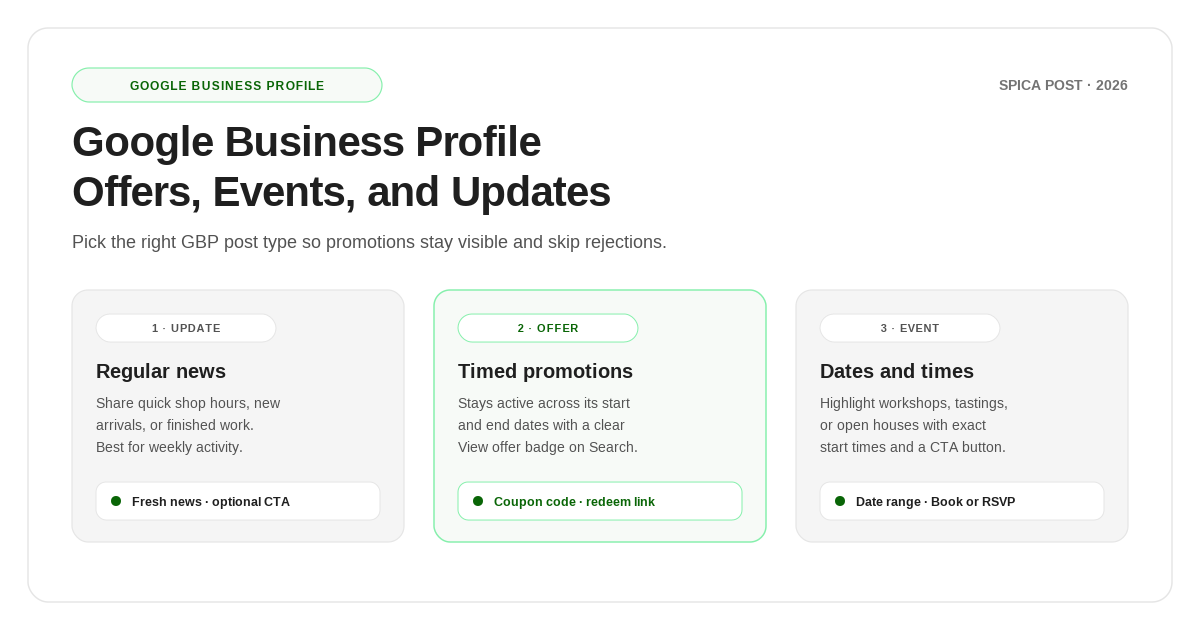
- What works live today: You can draft and preview Google Business Profile Updates, Offers, and Events right now using our free, no-login Google Business Profile Post Previewer (checking mobile fold, CTA buttons, and the 1,500-character limit), publish branded Link Pages with local service-area details and printable QR codes for invoices or yard signs, and schedule directly across X, LinkedIn personal profiles, Bluesky, and Mastodon.
- What is built and completing final live verification: Google approved Spica Post’s Google Business Profile API access and the integration (including direct GBP Updates/Offers/Events, Google Business Profile Performance metrics for Calls, Website clicks, and Maps/Search views, and Unified Inbox Google review replies) was enabled in production on November 16, 2026, and is awaiting our first live service-area profile verification walk before opening broadly across all workspaces. Likewise, Meta (Instagram, Facebook Pages, Threads), TikTok, and YouTube (OAuth approved, completing compliance audit) are built and finishing live platform approvals. Until live GBP direct posting unlocks for every workspace, draft and validate your weekly Google updates in Spica Post or our free previewer and paste them directly into Google Business Profile in sixty seconds. Check flat workspace plans anytime on our pricing page.
Working from home never disqualifies you from owning your local Google Map. Keep your street address hidden cleanly, skip every mailbox shortcut, record one calm verification video showing your real craft, and let steady job-site proof and honest neighbor reviews bring the phone calls straight to you.
Questions people ask
- Can I create a Google Business Profile if I run my service business from home?
- Yes. Google explicitly supports service-area businesses that travel to customers or deliver locally from a home base, such as plumbers, house cleaners, mobile mechanics, landscapers, tutors, home bakers who deliver, and on-site photographers. You enter your real residential address privately for verification and clear the street address so it never appears publicly on Google Maps.
- Will hiding my home street address hurt my Google Maps rankings?
- No, following Google's service-area guidelines protects your listing from sudden suspension, which hurts far more than hiding a pin. Google still uses your verified home base privately alongside your primary category, job-site photos, active updates, and customer reviews to show your business for local searches.
- How many service areas should I add to a Google Business Profile?
- Google allows up to 20 service areas (cities, counties, or ZIP codes) per profile and states that the overall boundary should generally stay within about two hours of driving time from where your business is based. Listing an entire state or distant cities you rarely serve adds no ranking boost and can trigger verification reviews.
- Can I use a P.O. box, UPS mailbox store, or coworking virtual office to show a public pin?
- No. Google's representation guidelines strictly prohibit P.O. boxes, commercial mail-receiving stores, and unstaffed virtual offices or coworking addresses where your staff does not hold permanent signage and regular open hours. Using one is one of the fastest ways to get a home-based profile suspended.
- How do I pass Google video verification when I have no storefront or outdoor sign?
- Record one continuous, uncut mobile video straight through Google's verification prompt covering three elements: a nearby street sign or house number tying you to your base area, proof that the business operates (unlocking your work vehicle, real tools, supplies, branded shirts, or cards), and matching business registration or utility paperwork with sensitive bank or tax details kept off screen.
Sources
- Google Business Profile Help: Guidelines for representing your business on Google
- Google Business Profile Help: Manage your service areas for service-area and hybrid businesses
- Google Business Profile Help: Verify your business with a video recording
- Google Business Profile Help: Tips to improve your local ranking on Google
- Google Business Profile Help: Tips for business-specific photos on your Business Profile