Google Business Profile
Google Business Profile Photos: What to Upload, How Often, and What to Skip
Upload sharp daylight photos across six core categories, meet Google's exact file specs, keep a steady weekly cadence, and avoid silent rejections.
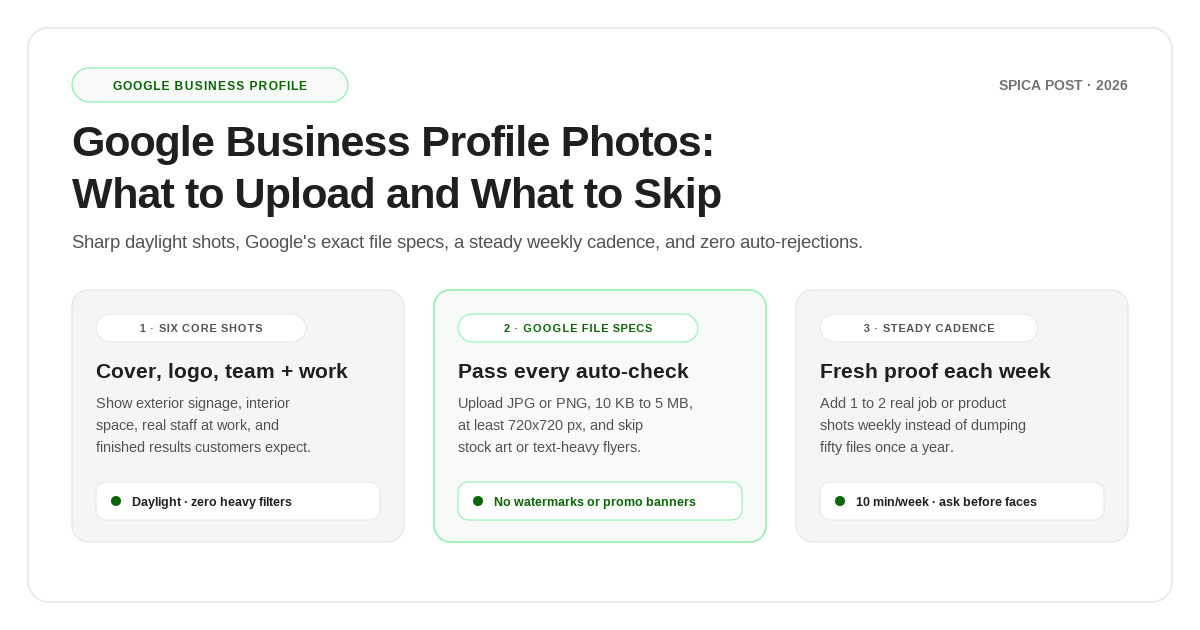
To get real phone calls and direction taps from your Google Business Profile photos, upload bright, in-focus JPG or PNG images (10 KB to 5 MB, at least 720 by 720 pixels) across six real-world categories (cover, logo, exterior, interior, team at work, and finished work or products), then add one or two fresh phone photos every week. Skip stock photos, screenshots, heavy filters, watermarks, and text-stuffed promo flyers, because Google’s automated moderation routinely rejects or hides anything that looks like an advertisement instead of real documentary proof of your business.
When a neighbor searches Google Maps for a dentist, bakery, auto shop, or plumber near them, your photos do more conversion work than your website ever will. Searchers open Maps with a quick visual checklist in mind: “Is this place open and clean? Will I recognize the entrance from the street? Do these people do tidy work?” Listings with sharp, current daylight images earn taps on Call and Directions; listings stuck on a grainy 2019 Google Street View blur send ready buyers straight to the next pin down the street.
This playbook translates Google’s published photo guidelines into a practical routine for small businesses and creators: the exact six photo buckets to fill first, Google’s technical file limits and silent rejection triggers, how service-area businesses build visual trust without a storefront, a realistic weekly and seasonal upload rhythm, explicit customer permission habits, and a 10-minute Friday workflow.
Snapshot verified November 2026. All file-size thresholds, pixel minimums, category recommendations, and photo moderation criteria below reflect Google Business Profile Help and Maps User Generated Content documentation verified in November 2026.
Why your Google Business Profile photos decide the tap before your site loads
Most local buyers never click through to your website until your Google Maps card passes a five-second visual check. Google’s local ranking help guide notes that complete, accurate business information builds prominence and makes it easier for Google to match your listing to local searches, while Google’s business-specific photo tips emphasize that real photos help people picture themselves arriving, ordering, or hiring you.
What local searchers look for in the first five seconds
On a phone screen, a customer scanning three local businesses rarely reads long paragraphs first. They swipe through four to six thumbnails looking for concrete reassurance:
- Proof you are open and active right now. Recent photos showing current seasons, clean shelves, stocked display cases, or freshly finished jobs beat a five-year-old logo every time.
- Zero arrival anxiety. Seeing your exterior sign from the road and knowing where to park removes the friction that keeps first-time visitors from driving over.
- Human credibility. Real team members smiling in clean aprons or uniforms and tidy, well-lit workspaces prove there is a dependable crew behind the phone number.
- Output quality. Clear close-ups of plated food, finished hairstyles, aligned cabinetry, or neat electrical panels answer “Can they handle my exact job?” faster than any slogan.
If you have not finished configuring your core listing fields, categories, and verification yet, pair this guide with our complete Google Business Profile setup walkthrough before polishing your gallery.
The six core photo categories to fill first
Rather than uploading twenty random shots from your camera roll, cover all six categories Google explicitly highlights so every tab in your gallery looks complete and trustworthy.
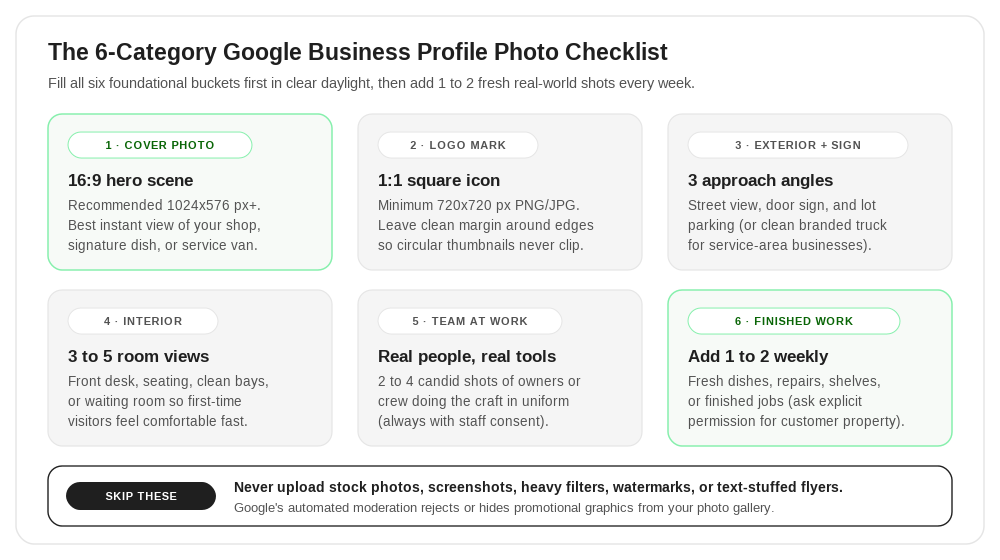
| Category | Starter target | Best aspect ratio and resolution | What to frame cleanly |
|---|---|---|---|
| Cover photo | 1 hero photo | 16:9 landscape · 1024 x 576 px+ (or 1280 x 720 px) | Your single strongest visual summary: sunlit storefront, inviting dining room, signature dish, or clean branded service van. Keep the focal point centered because Maps crops edges differently across phone and desktop cards. |
| Logo | 1 crisp file | 1:1 square · 720 x 720 px+ PNG or JPG | Your readable brand icon on a solid light or solid brand-colored background with generous outer margin so Google’s circular crop never slices letters off. |
| Exterior and signage | 3 to 4 shots | 4:3 horizontal · 1200 x 900 px | Approach shots from both directions down the street, the front door with visible signage, and customer parking or drop-off lanes. Shoot once in morning daylight and once in evening glow if you serve dinner or night hours. |
| Interior and common areas | 3 to 5 shots | 4:3 horizontal · 1200 x 900 px | Front counter, seating layout, waiting area, treatment room, or clean service bays captured wide from chest height with clutter tucked out of view. |
| Team at work | 2 to 4 shots | 4:3 horizontal · 1200 x 900 px | Owners and staff actually practicing their profession (steaming espresso, calibrating gauges, styling hair, inspecting engines) in natural lighting, always with staff consent. |
| Finished work and products | 4 to 6 starter + 1 to 2 weekly | 4:3 horizontal · 1200 x 900 px | Best-selling items on clean surfaces, plated specials, completed installations, or tidy before-and-after results captured on real jobs. |
Why Google sometimes ignores your selected cover photo
Many owners set a cover photo inside Google Business Profile Manager, refresh Maps ten minutes later, and wonder why Google is still showing an exterior photo or a customer snapshot instead. Google’s photo management documentation states clearly that setting a cover photo indicates your preference, not an absolute lock. Google’s system can substitute another image when your preferred cover fails quality checks, sits in an awkward vertical crop, contains overlaid text, or matches a specific user search less closely than another photo in your gallery.
The fastest way to make your chosen cover stick is uploading a sharp, well-lit 16:9 horizontal camera photo with zero text overlays, zero borders, and a clear center subject. Avoid putting your logo graphic into the Cover slot; Google gives your logo its own dedicated slot.
How to keep your logo readable at tiny thumbnail sizes
On Google Maps search cards and owner review replies, your logo shrinks into a small circle. Wide horizontal wordmarks with thin taglines turn illegible at 40 pixels wide. Export a square 1000 by 1000 pixel PNG containing only your icon or bold initials centered inside the middle 70 percent of the canvas, leaving clean breathing room around all four edges.
Google’s official photo technical limits and what triggers automatic rejections
Meeting Google’s file limits prevents upload errors, while understanding Google’s content moderation prevents the much more frustrating problem: uploads marked “Not approved” or silently hidden from public view.
According to Google Business Profile photo standards and Google Maps format-specific criteria, every image must satisfy these exact baseline limits:
| Technical parameter | Official Google limit or standard | Practical tip to stay safely inside it |
|---|---|---|
| File format | JPG or PNG | Export iPhone HEIC and camera RAW files as standard JPG before uploading; skip WebP or GIF. |
| File size | 10 KB minimum to 5 MB maximum | Most modern phone JPEGs land between 1.5 MB and 4 MB; compress huge 8 MB DSLR exports down to ~2 MB without crushing sharpness. |
| Resolution | Recommended 720 x 720 px; hard minimum 250 x 250 px | Shoot native phone resolution and aim for at least 1200 x 900 px (4:3) or 1280 x 720 px (16:9) so Maps never flags low resolution. |
| Visual quality | In focus, well lit, no significant alterations, no excessive filters | Wipe your lens, step into even daylight, tap to focus, and skip moody presets, heavy vignettes, or artificial HDR halos. |
| Reality representation | Must accurately depict the real physical location, products, or work | Never upload stock imagery, 3D mockups, screenshots of Instagram feeds, or photos pulled from another brand’s catalog. |
| Overlays and branding | Text overlays, borders, and promotional graphics are restricted under Maps format criteria | Keep gallery photos 100 percent raw photography with zero “20% OFF!” banners, phone-number strips, corner watermarks, or collage borders. |
Before uploading a fresh batch or attaching an image to a Google Update, check pixel dimensions and ratios locally in your browser with our free Social Media Image Size and Ratio Checker (images stay completely on your device). When attaching a photo to a Google Business Profile Update, Offer, or Event post, you can also inspect the 5 MB JPG/PNG limit and mobile preview right inside our free Google Business Profile Post Previewer.
Six things to skip so Google’s filters never hide your photos
Automated review on Google Maps scans every uploaded image within minutes. Six common habits trigger instant “Not approved” flags or quiet suppression:
- Promotional flyers and graphic templates. Save Canva announcement graphics for Instagram or flyers. On Google Business Profile, gallery photos are meant to document real physical spaces, people, and work, not advertise coupons with stacked text blocks. Even on Google Offer posts, a clean real-world photo outperforms a text-crammed banner.
- Stock photography. Google’s vision models recognize widely circulated stock scenes instantly. Uploading a generic smiling call-center rep or stock plumbing wrench hurts trust with real locals and violates authenticity policies.
- Corner logos and copyright watermarks. Slapping a giant phone number or semi-transparent brand stamp across your finished patio or haircut photo often trips Google’s promotional overlay filter. Your business name and phone number already sit two centimeters above the photo on your profile.
- Screenshots from your phone or website. Screenshots carry status bars, black letterbox bars, low compression quality, and UI text that Maps filters flag immediately. Always upload the original camera file.
- Heavy social media filters and collages. Extreme color grading, split-screen before-and-after collages with giant arrows, and decorative frames distort how the place actually looks. Upload the clean “before” and clean “after” as two separate raw photos, or keep the focus on the crisp finished result.
- Blurry, dim, or tilted interior snaps. Fluorescent-lit hallways, backlit counters facing bright windows, and crooked wide-angle shots make clean businesses look dated. Shoot with your back to the window, turn on every overhead light, and hold the phone level at chest height.
For lighting tricks that make everyday phone photos look sharp without studio lamps, follow our step-by-step phone product photography guide.
Storefronts vs. service-area businesses: tailoring your shot list
A brick-and-mortar café and a mobile HVAC contractor have completely different customer questions, yet both need strong visual proof on Maps. Google’s guidelines for representing your business draw a clear boundary between storefront locations where customers visit in person and service-area businesses (SABs) that travel to customers’ homes or job sites.
Storefront businesses (shops, salons, clinics, restaurants)
Customers want to know where to park, what the vibe feels like inside, and whether the space looks clean and welcoming. Prioritize:
- Three approach views showing neighboring landmarks, the entrance door, and accessible parking or ramp access.
- Morning light interior sweeps captured five minutes before opening when chairs are aligned, counters are wiped, and shelves are stocked full.
- Close-ups of signature offerings shot in open shade or beside a bright window (fresh pastry trays, styled display shelves, spotless treatment chairs).
- Menu boards or service displays only when photographed straight-on and crisp, though putting text menus into Google’s dedicated Menu or Services fields is always easier for shoppers to read.
Service-area businesses (plumbers, cleaners, landscapers, mobile groomers)
Never photograph your personal driveway or home office. Your customer’s main concern is “Who is walking onto my property or into my home?” Build immediate reassurance with:
- Your clean branded vehicle parked in an open public lot or scenic neighborhood street in bright morning sun (with your van wrap or door magnet clearly legible).
- Uniformed crew portraits and in-action shots showing technicians wearing shoe covers, laying down drop cloths, checking pressure gauges, or organizing clean tool bags.
- Neat finished installations and outcomes such as crisp copper manifold soldering, spotless oven interiors, manicured hedges, freshly painted trim, or tidy breaker panels.
- Clear documentation of tools and safety care that shows professionalism without revealing private customer locations.
Our dedicated job-site photography playbook outlines a five-frame routine crews can shoot in under two minutes right before packing up the van.
How often to upload new photos (a realistic cadence that beats photo dumps)
Uploading 45 photos in one afternoon and then ignoring your Google Business Profile for fourteen months leaves your gallery looking stale by next spring. A steady drip signals ongoing activity to both customers checking photo dates and Google’s freshness signals, without devouring your workweek.
| Business type | Launch baseline (Month 1) | Ongoing steady cadence | Best weekly photo habit |
|---|---|---|---|
| Restaurants, bakeries, cafés, food trucks | 15 to 20 photos across all 6 buckets | 2 to 3 new photos per week | Shoot 1 fresh dish or seasonal drink in natural window light before lunch rush twice a week. |
| Home services and field professions | 12 to 15 photos (van, crew, tools, work) | 1 to 2 new photos per week | Pick the cleanest completed job every Tuesday and Friday (with customer consent). |
| Salons, barbers, studios, clinics | 12 to 18 photos (exterior, chairs, team, work) | 1 to 2 new photos per week | Capture finished styles, calm treatment rooms, or fresh seasonal retail shelves. |
| Retail shops and local boutiques | 15 to 20 photos (street, aisles, shelves, team) | 2 new photos per week | Photograph newly unpacked arrivals, front window resets, and gift-ready displays. |
| Solo consultants and local offices | 8 to 12 photos (building entry, suite, portrait) | 2 to 4 new photos per month | Refresh team headshots, workshop sessions, office updates, and seasonal signage. |
Refresh your gallery across all four seasons
Nothing ages a local listing faster than displaying Christmas wreaths in July or patio umbrellas buried in snow during May. Plan one 15-minute seasonal audit at the start of every quarter:
- Winter (January to March): Upload cozy indoor atmosphere, cold-weather services (heating tune-ups, winter specials, storm prep), and clean entryway lighting for early dusk hours.
- Spring (April to June): Refresh exterior shots once trees leaf out, add spring maintenance work, patio reopenings, graduation or seasonal inventory, and fresh team photos.
- Summer (July to September): Highlight bright daylight exteriors, cooling or outdoor services, cold drinks or summer products, and shaded seating or waiting comfort.
- Fall and Holidays (October to December): Add seasonal menu or retail displays, crisp autumn exteriors, and accurate holiday-hours announcements posted through Google Updates (not pasted as giant text onto gallery photos).
Handling outdated or off-brand customer photos
Google allows any Maps user to upload photos to your profile. Often those candid customer shots help build authentic trust, especially for restaurants and retail shops. Occasionally, though, a customer uploads a blurry photo, a picture of a completely different store down the strip mall, or an image from three years ago before your remodel.
Because Google does not let owners arbitrarily delete valid customer photos, use a calm two-step response:
- Flag genuine policy violations immediately. Open your profile’s photo gallery in Google Business Profile Manager, click the flag icon on any photo showing the wrong business, spam, private personal data, or prohibited content, and submit a removal report.
- Outshine weak or dated photos with fresh owner uploads. When a customer photo is simply dark or old without breaking policy, upload three to five bright, sharp owner photos showing the renovated room or current dishes. Fresh, high-clarity owner shots consistently earn higher visibility at the front of your carousel.
Pair your fresh gallery with warm, timely owner answers on customer feedback using our Google review response guide, because customers check photos and recent reviews side by side before tapping Call.
Customer permission and privacy hygiene before you tap upload
One careless detail in a background can damage a client relationship or trigger a Google privacy removal. Protect your customers and your staff with four clear habits:
- Ask explicit customer permission before photographing or posting identifiable people or private property. Never upload recognizable faces of customers, families, or children without direct spoken or written consent. For in-home services, ask the homeowner before shooting completed kitchens, bathrooms, backyards, or driveways.
- Check every corner of the frame for personal details. Before uploading, zoom in and confirm zero street house numbers, vehicle license plates, mail on counters, kids’ school photos on refrigerators, security alarm keypad stickers, or names on invoices appear anywhere in the background.
- Get staff consent for team shots. Ask employees whether they are comfortable appearing in public Maps photos, and respect anyone who prefers working behind the camera.
- Keep a clean permission script ready. Save these two copy-ready prompts so asking feels warm and natural rather than awkward.
Verbal permission ask at the end of a job or appointment
“I am really glad you love how this turned out. Would you mind if I took one quick photo of the finished [space/dish/style] for our Google Business Profile? I will make sure no faces, house numbers, or personal items are in the shot, and it is completely fine if you prefer to skip it.”
Follow-up text permission request before posting a job photo
“Hi [Customer Name], thanks again for having us out today! Would you be comfortable with us sharing one clean photo of the finished [project] on our Google Business Profile to show neighbors our work? No names, addresses, or personal details will ever be included. Just reply yes or no, zero pressure either way.”
A 10-minute Friday photo routine and honest Spica Post trade-offs
Consistency beats perfection. Run this lightweight Friday routine so your profile stays sharper than every competitor in your zip code:
- Collect two clean shots during the week (3 minutes). Save your two sharpest natural-light phone photos (one finished work/product shot and one team, shelf, or seasonal update) into a dedicated
GBP Photosalbum on your phone. - Inspect dimensions and privacy details (2 minutes). Wipe out anything blurry, check backgrounds for private info, and verify JPG format, 4:3 or 16:9 ratio, and file size under 5 MB using our free Image Size Checker.
- Upload directly and pair with one Google Update (5 minutes). Upload both raw photos to your Google Business Profile photo gallery in GBP Manager, and use one of them to publish a brief weekly Google Update highlighting open slots, seasonal prep, or a featured offering (preview the 120-character mobile fold first in our GBP Post Previewer).
Honest trade-offs if you evaluate Spica Post for Google Business Profile
Small businesses and creators often ask what Spica Post handles directly for Google Business Profile versus what still stays inside Google’s own interface. Here is the plain November 2026 reality:
- What Spica Post builds and supports: Google approved Spica Post’s Business Profile API access in October 2026 and Google Business Profile (
mybusiness.googleapis.com) was enabled in production in November 2026 for scheduling Updates, Offers, and Events (each with one validated JPG or PNG photo up to 5 MB and a call-to-action button), viewing live Google Performance metrics (Calls, Direction requests, Website clicks, and Maps/Search views), and organizing Google reviews inside the Unified Inbox. Note transparently that Spica Post’s first live customer connection is awaiting verification of our own test service-area profile before opening broadly to all workspaces. - What stays inside Google Business Profile Manager: Permanent profile photo buckets (setting your Cover preference, uploading your square Logo, categorizing Exterior/Interior/Team gallery albums, and flagging policy-violating customer photos) are best managed directly inside Google Business Profile Manager.
- What is live right now today: Our free browser-based Google Business Profile Post Previewer and Image Size Checker require zero login, and Spica Post’s live publishing today covers X, LinkedIn personal profiles, Bluesky, and Mastodon alongside branded Link Pages with printable QR codes. You can review flat workspace plans anytime on our pricing page.
Start today with one quick audit: open your business on Google Maps from your phone, swipe through the first six images like a stranger deciding where to spend money, and replace any dark, outdated, or text-cluttered shots with bright daylight proof of the work you actually do.
Questions people ask
- What photo size and file format does Google Business Profile require?
- Google Business Profile accepts JPG and PNG files between 10 KB and 5 MB. Google recommends a minimum resolution of 720 pixels tall by 720 pixels wide (with a hard technical floor of 250 by 250 pixels), focused, well lit, and free of excessive filters or significant alterations. Aim for 16:9 (1024 by 576 pixels or larger) for your cover photo, 1:1 square for your logo, and clean 4:3 horizontal framing (1200 by 900 pixels) for gallery and post photos.
- Why does Google sometimes ignore my chosen cover photo or reject a photo I uploaded?
- Setting a cover photo tells Google your preference, though Google can still display a different photo when a searcher's query matches another image better or when your cover has low quality. Uploads are frequently rejected or hidden automatically when they contain stock photography, screenshots, heavy filters, watermarks, or promotional text banners covering more than a tiny fraction of the frame.
- How often should a small business upload new photos to Google Business Profile?
- Start by uploading 12 to 18 strong foundational photos across all six core categories (cover, logo, exterior, interior, team at work, and finished work or products). After launch, add 1 to 2 genuine new photos per week, or at least 4 per month, to show active operations, fresh inventory, and seasonal updates.
- What photos should a service-area business upload without a storefront?
- Skip residential driveways or home offices. Upload clean photos of your branded service vehicle, uniformed team members at work, organized tool kits or equipment setups, and finished job outcomes (such as repaired fixtures, trimmed yards, or freshly cleaned rooms) captured with explicit customer permission and zero identifying house numbers or license plates.
- Can I remove an unflattering photo a customer uploaded to my Google Business Profile?
- Business owners cannot freely delete customer-uploaded photos unless the photo breaks Google's content policies (such as showing the wrong business, spam, private personal data, or offensive imagery). When a photo violates policy, flag it inside Google Business Profile Manager. When it is simply unflattering, upload several crisp, bright owner photos so fresh high-quality visuals dominate the top of your gallery.
Sources
- Google Business Profile Help: Manage photos and videos for your Business Profile
- Google Business Profile Help: Tips for business-specific photos on your Business Profile
- Maps User Generated Content Policy: Format Specific Criteria
- Google Business Profile Help: Guidelines for representing your business on Google
- Google Business Profile Help: Tips to improve your local ranking on Google