AI workflows
Turn Your Website Into a Month of Social Posts With an AI Assistant
Turn five pages you already wrote into 12 to 16 authentic monthly social posts using an AI assistant connected over MCP, real photos, and clean UTMs.
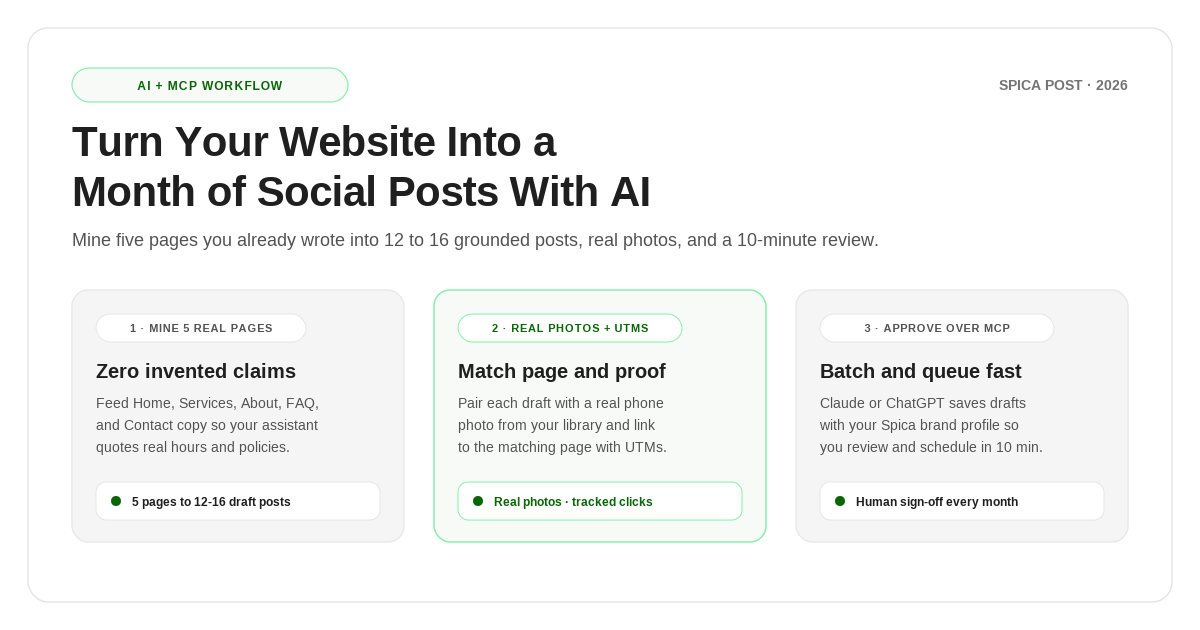
Turning your website into a month of social media posts with an AI assistant takes about 45 focused minutes once you stop asking for ideas from scratch and start mining five pages you already wrote: Home, Services or Menu, About, FAQ, and Contact or Reviews. Those five pages already contain your real hours, neighborhood boundaries, guarantees, pricing framing, and the exact questions buyers ask before calling, which means Claude or ChatGPT can turn proven business facts into 12 to 16 ready-to-approve posts instead of generic marketing fluff.
Most small businesses and creators sit on a finished website that took weeks to write and then stare at a blank caption box every Tuesday afternoon. Meanwhile, when they open an AI chat and type “Write 15 social media posts for my clinic” or “Give me a month of Instagram captions for my bakery,” the output arrives stuffed with exclamation marks, hollow phrases like “elevate your everyday,” and made-up claims about same-day guarantees or discounts the business never offered. Fixing those hallucinations takes longer than writing every caption by hand.
Snapshot verified November 2026 against the Model Context Protocol specification, Google Analytics UTM documentation, and live Spica Post MCP workspace tools. This guide gives you the exact five-page extraction map, a timed 45-minute monthly routine, three copy-ready prompts for Claude or ChatGPT, clean UTM link hygiene, a real-photo Media Library habit that protects customer privacy, and an honest breakdown of how Spica Post connects your brand setup to your assistant over MCP for a 10-minute approval pass.
Why mining your own website beats blank-page AI prompts
Starting from your live website flips an AI assistant from a guessing machine into a disciplined editor. Every sentence on your website went through human scrutiny before going public: you checked that the phone number was right, the parking instructions made sense, the turnaround times were realistic, and the descriptions matched how you speak to walk-in customers.
How blank-page prompts cause factual drift
When an assistant has only your business name and profession, it fills every blank with statistical averages from thousands of unrelated companies. A family dental office suddenly gets captions bragging about “luxury spa amenities” it does not own. A neighborhood bakery gets drafts promising gluten-free sourdough every morning when gluten-free loaves only bake on Fridays. Even subtle drift costs real trust because local customers show up expecting what your post promised.
The second failure of blank-page prompting is structural repetition. Without varied source material, almost every generated caption follows the same tired arc: a rhetorical question, three bullet points with rocket emojis, and a vague closing line telling followers to “reach out today.” Readers scroll past that rhythm in half a second because it sounds identical to every competitor in town.
What your existing five pages already prove
Your own website breaks that repetition automatically because each core page answers a different buyer hesitation. Your Services or Menu page explains concrete work and deliverables. Your FAQ page removes friction around timelines, deposits, warranties, and prep steps. Your About page explains why neighbors trust your team over a national franchise. Your Contact, Hours, and Reviews pages show exactly how to book, where to park, and what past clients noticed in their own words.
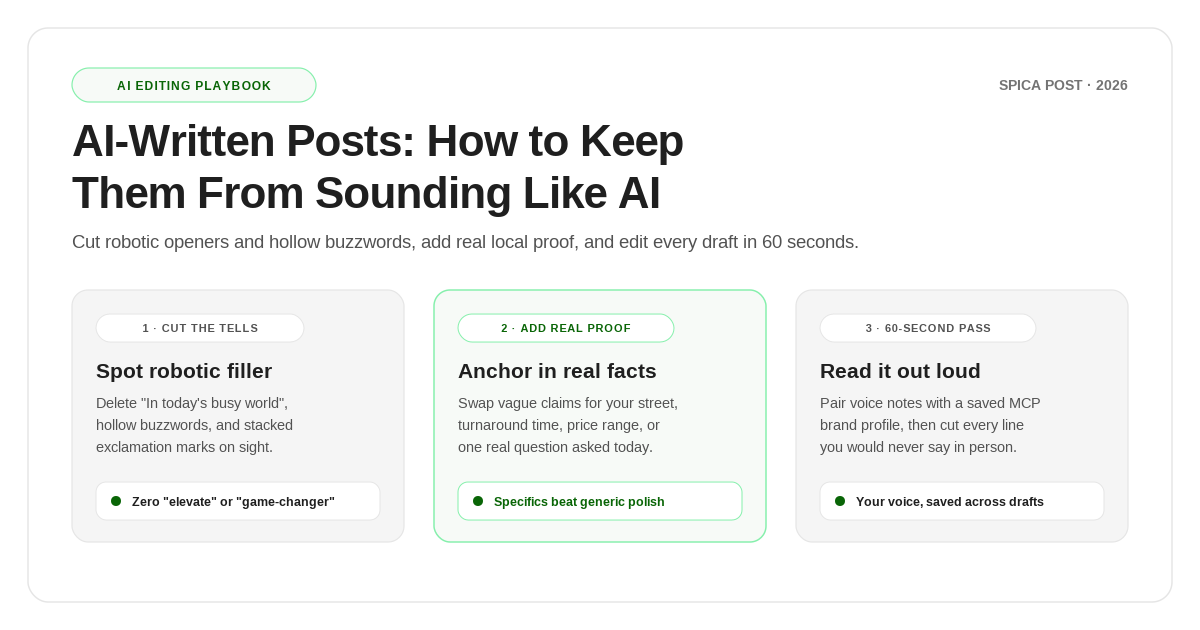
By grounding every monthly batch in those five pages, you force every post to carry one specific truth, one natural link back to the matching landing page, and one clear reason for a local buyer to save, click, or call. If you want to refine how your captions echo your everyday speaking voice even further, pair this extraction routine with our brand voice guide for small businesses and our checklist on making AI social media posts sound human.
The five-page extraction map: 1 website to 12 to 16 monthly posts
Before opening Claude or ChatGPT, map your five website pages to exact monthly post slots. Keeping a fixed quota per page prevents your feed from turning into twelve straight sales pitches and guarantees that every corner of your site gets fresh traffic every thirty days.
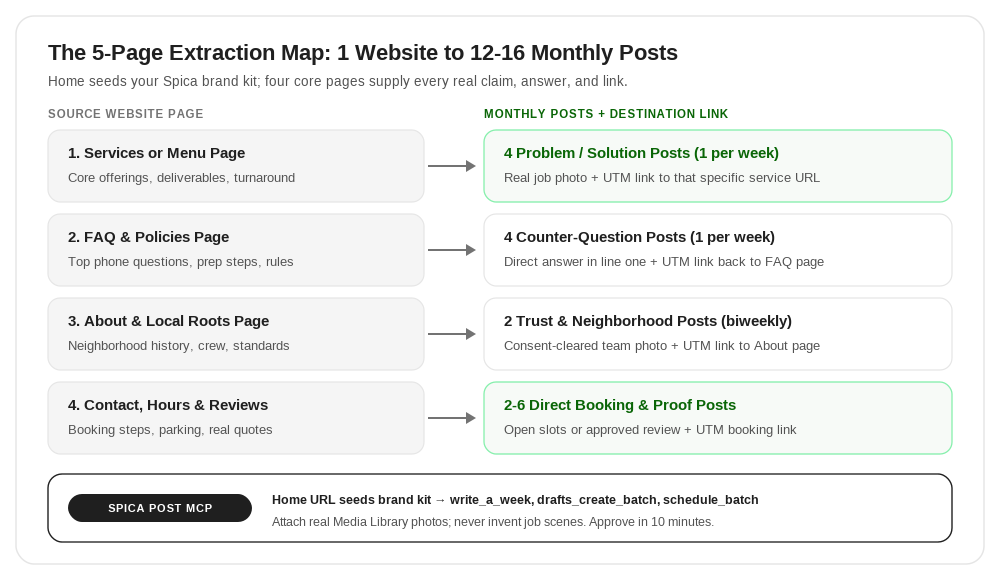
| Source website page | Facts to pull out | Monthly post quota | Target landing page | Recommended real visual |
|---|---|---|---|---|
| Home page | Business name, tagline, city, logo, brand colors, primary positioning | Seeds brand kit (plus optional 1 seasonal overview) | / (Home) |
Clean exterior, storefront sign, or signature finished work |
| Services or Menu page | Four core offerings, what is included, typical turnaround, who each fits | 4 problem-and-solution posts (1 per week) | Exact /services/... or /menu/ page |
Real daylight photo of that specific service or finished item |
| FAQ and Policies page | Top four pre-booking questions, prep steps, cancellation or warranty clarity | 4 counter-question posts (1 per week) | /faq/ or matching service FAQ anchor |
Close-up of a tool, prep step, sample sheet, or clean desk setup |
| About and Local Roots page | Founding story, neighborhood ties, staff roles, certifications, quality checks | 2 trust and neighborhood posts (every 2 weeks) | /about/ |
Team member at work (with consent) or clean shop corner |
| Contact, Hours, and Reviews | Open booking slots, parking/landmark clues, current offers, permission-cleared quotes | 2 to 6 direct booking and proof posts | /contact/, /book/, or /reviews/ |
Storefront entrance, open calendar visual, or finished result |
Home page: seeding your brand kit once
Your Home page does not need to generate five vague “we do everything” posts. Its best job happens once during setup: supplying your official business name, city, service radius, logo, visual identity, and plain-English one-line promise. In Spica Post, pasting your website address during brand setup pulls your business name and logo automatically, and you finish saving your colors, fonts, hours, and profession details on the Brand page so your connected assistant never has to ask for them again.
Services or menu page: four problem-and-solution posts
Pick four distinct services, menu items, or packages from your main offerings page, one for each week of the month. For each item, extract three raw facts from the page: the exact problem the customer walks in with, what your process actually includes (without jargon), and the realistic turnaround or next step.
A heating and cooling company might pull four concrete angles from one Services page: seasonal duct checkups, thermostat replacement on older homes, annual coil cleaning before peak summer, and emergency weekend dispatch terms. A neighborhood accounting practice might extract quarterly bookkeeping cleanup, new LLC setup guidance, payroll onboarding, and estimated tax check-ins. Each post points directly to that service’s own section or URL rather than forcing visitors to hunt from the Home page.
FAQ and policies page: four counter-question posts
Your FAQ page is the highest-converting raw material on your entire website because every entry records an objection that once stopped a paying customer from booking. Pull four questions you hear weekly on the phone or at the counter: “How long does a standard appointment take?”, “Do I need to be home while the crew works?”, “What should I bring to my first visit?”, or “Do you accept walk-ins on Saturday mornings?”
Turn each entry into a calm, direct post whose opening sentence delivers the real answer immediately. Shoppers searching social profiles before calling love clear policy posts because transparent businesses feel safer to hire.
About and local roots page: two trust posts
Small businesses and creators win locally because real people stand behind the work. Pull two concrete details from your About page each month: why you opened in this neighborhood, a quality check your team refuses to skip, the training behind a certification, or a quick introduction to a staff member who is comfortable being featured. Keep these posts grounded in observable habits rather than inflated mission statements.
Contact, hours, and reviews: two to six booking and proof posts
Close the loop with two direct booking reminders (naming exact opening hours, parking clues, and how to schedule) plus up to four short customer-proof posts built from real reviews you have permission to quote. Never let an AI assistant invent a composite testimonial or paraphrase a five-star quote until it sounds like an ad; quote the real words cleanly with explicit consent from the customer.
The 45-minute monthly workflow, step by step
Schedule one calm 45-minute block during the last week of the month. Keeping the timing strict stops perfectionism from dragging a quick batch session into a three-hour detour. For broader batching habits beyond your website, see our guide to batching a month of social posts.
- Minutes 0 to 10: Gather clean source text from your five pages. Open your Home, Services or Menu, About, FAQ, and Contact pages in your browser, or let your MCP-connected assistant inspect the live public URLs if it supports browsing. Copy the plain text of the four content pages into a single working note (excluding footer menus and cookie banners) and note any seasonal hours or limited-time specials for the coming month.
- Minutes 10 to 20: Pick 12 to 16 real photos from your phone or Media Library. Before generating captions, choose the real visual that will accompany each post slot. Picking photos first ensures your assistant writes captions that actually describe what the reader sees on screen instead of describing a scene you never photographed.
- Minutes 20 to 30: Run the extraction prompt and check every fact. Hand your four pages, your target URLs with UTM tags, and your photo list to Claude or ChatGPT. Require the assistant to cite which website page each post came from and insert
[VERIFY DETAIL]whenever a timeframe, price, or policy is not explicitly stated in your text. - Minutes 30 to 35: Adapt to network limits and save drafts via MCP. Ask your assistant to tailor lengths cleanly for each connected channel’s character limits (without repeating identical walls of text everywhere) and save the batch directly into Spica Post using
drafts_create_batchor the guidedwrite_a_weekflow. - Minutes 35 to 45: Complete your 10-minute human approval pass and schedule. Open your Spica Post drafts queue, read every post aloud once for factual accuracy and natural phrasing, verify each attached photo and landing-page link, and approve the batch for
schedule_batch.
Three copy-ready prompts to run with Claude or ChatGPT
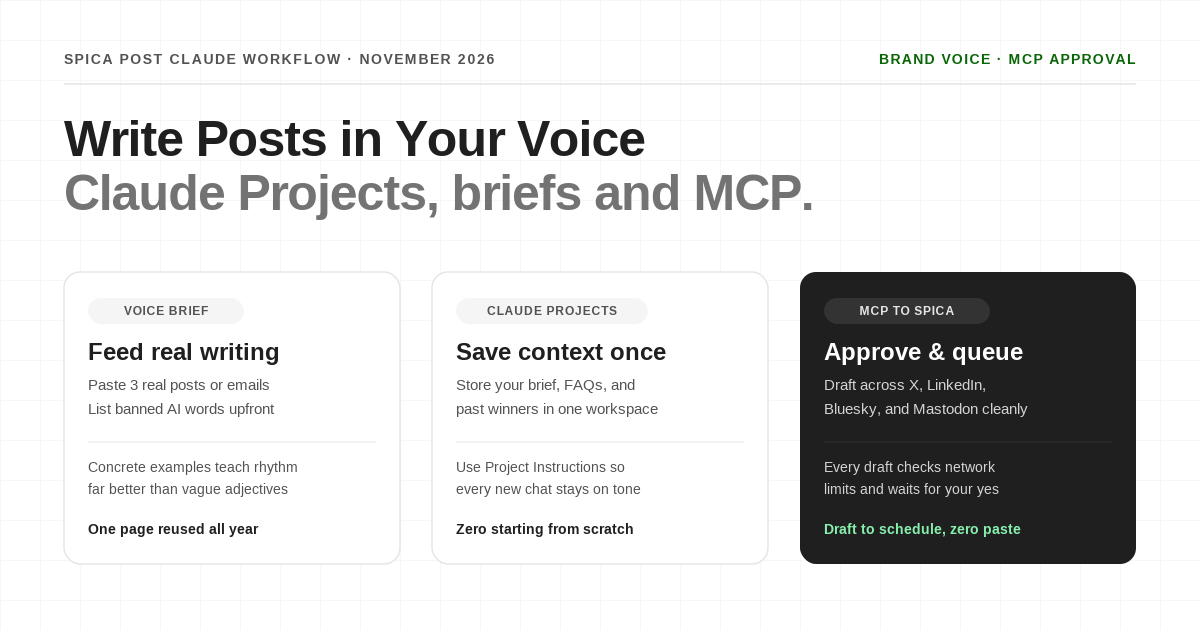
Save these three prompts in your notes or inside a dedicated Claude Project (see our Claude brand voice setup guide or ChatGPT calendar prompts guide). Swap the bracketed details for your real website text and URLs.
Prompt 1: Extract the 12 to 16 post plan from your five pages
Read the five website pages below for [Business Name] in [City]. Act as an editor, not a hype copywriter. Do not invent any price, discount, turnaround time, guarantee, certification, or customer quote that is not written in these pages. If a useful fact is missing, write [CHECK DETAIL] instead of guessing.
Build a 14-post monthly plan using this exact breakdown:
- 4 problem-and-solution posts from the Services/Menu page
- 4 counter-question posts from the FAQ/Policies page
- 2 neighborhood trust posts from the About page
- 2 direct booking and hours posts from the Contact page
- 2 customer-proof posts using only the approved reviews I pasted below
For each post, return: (1) Source page, (2) Opening hook under 120 characters, (3) Matching destination URL, and (4) Suggested real photo from my photo list below. Never use em dashes or cliches like “elevate,” “game-changer,” or “unlock.”
[Paste Services, FAQ, About, Contact, Approved Reviews, and Photo List here]
Prompt 2: Draft channel-ready captions matched to your real photos
Write the full captions for the 14 approved slots above using our saved Spica Post brand voice. Keep every caption grounded in the exact photo paired with that slot.
Formatting requirements:
- Lead sentence answers the buyer’s real question or states the concrete takeaway immediately.
- Respect each network’s character limits cleanly (short punchy version for X or Bluesky, fuller practical context for LinkedIn or Google Business Profile).
- End each post with one clear next step pointing to its specific UTM-tagged landing page URL.
- Zero em dashes, zero fabricated testimonials, and zero exclamation-mark spam.
Prompt 3: Save drafts into Spica Post over MCP for review
Using my connected Spica Post workspace, check my saved brand profile and connected accounts first. Save these 14 captions as drafts with
drafts_create_batch(do not publish or schedule yet), map each draft to its planned day and time across the next four weeks, and give me the direct review links so I can inspect the photos and approve the batch before we callschedule_batch.
Pairing every link with clean UTM tags and matching landing pages
One of the fastest ways to waste website-derived social posts is sending every single click to https://yourbusiness.com/. When someone reads a post about emergency water heater repair or Saturday pastry pre-orders and lands on a generic Home page, half of them leave before finding the booking button.
Point every post to the exact page that sourced it, then attach three simple campaign parameters recommended in Google Analytics UTM guidance: utm_source (the network), utm_medium (social), and utm_campaign (the website page group plus month). You can generate error-free links in seconds using our free UTM Builder.
| Post bucket | Destination path | Example utm_campaign |
What your analytics tell you next month |
|---|---|---|---|
| Services / Menu | /services/ac-tuneup/ or /menu/ |
site_services_2026_12 |
Which specific service angles pull real visitors |
| FAQ / Policies | /faq/#booking-deposit |
site_faq_2026_12 |
Which buyer questions drive pre-booking research |
| About / Local Roots | /about/ |
site_about_2026_12 |
Whether local-story posts warm up new visitors |
| Contact / Booking | /contact/ or /book/ |
site_booking_2026_12 |
How many direct appointment clicks came from social |
Keep every UTM tag lowercase, use underscores instead of spaces, and never invent brand-new naming conventions halfway through the quarter. If your Spica Post plan includes tracked /l/ short links, shortening your UTM-tagged landing URL lets you see clean per-post click counts right inside Spica Post Results even on networks that do not report link clicks back to third-party schedulers.
Real phone photos over AI-invented images, plus customer permission
Even a sharp, truthful caption loses credibility the moment you pair it with an AI-generated illustration of a glossy kitchen you do not own or smiling stock models who never visited your shop. Buyers scrolling locally want visual verification that you are a real business doing clean work in their town.
Why fake job photos erode local trust
AI-generated job photos trigger quiet skepticism in almost every profession. Homeowners notice warped tile lines, unreadable van lettering, and unnatural lighting on contractor posts. Diners immediately spot overly glossy AI food shots that look nothing like the plate served at the counter. Worse, misrepresenting completed work can create real disputes when customers expect what they saw online. Skip synthetic photography for real operations altogether and stick to honest phone shots taken in soft natural light.
Building a reusable 20-photo Media Library folder
You do not need a fresh photo shoot every week to cover 12 to 16 monthly posts. Spend twenty minutes once a quarter capturing twenty clean horizontal and vertical shots on your phone and upload them to your Spica Post Media Library with descriptive tags and alt text:
- Six service or product shots: finished work, plated dishes, arranged shelves, or packaged orders shot in open daylight.
- Four process or tool details: neat workstations, fresh ingredients, inspection checklists, or clean equipment ready for the morning.
- Four storefront and wayfinding shots: your sign from the street, entrance door, parking lot, and clean reception desk.
- Six seasonal or neighborhood shots: holiday window setups, weather-specific prep, or team portraits of colleagues who opted in.
For simple lighting and framing habits that make everyday phone pictures look sharp without studio gear, read our phone product photography guide and our job-site photography guide.
Always secure explicit permission for customer photos and quotes
Whenever a post from your Reviews, Services, or About pages includes a customer’s face, child, home exterior, license plate, private yard, or named testimonial, ask for explicit permission before photographing or publishing. A quick verbal check followed by a short text confirmation (“May we share this finished porch photo and your first name on our social pages?”) takes ten seconds and protects your reputation permanently. When in doubt, frame tight on hands, finished work, or empty spaces with zero identifying details, and never publish private customer information.
Connecting Claude or ChatGPT to Spica Post over MCP
Copy-pasting fourteen captions between a chat window and four browser tabs breaks the rhythm of a 45-minute session. Connecting Claude, ChatGPT, or another MCP-compatible assistant directly to your Spica Post workspace turns the whole extraction into one continuous conversation while keeping you firmly in charge of what goes live.
Here is how the pieces fit together cleanly inside Spica Post:
- Brand setup from your website: Adding a brand by its website URL reads your business name and logo right away, and finishing your brand profile stores your colors, fonts, hours, and profession context in one place. Your assistant reads that saved brand profile automatically over MCP whenever you start a monthly session.
- Structured batch drafting: Instead of printing loose text in chat, your assistant calls Spica Post’s guided
write_a_weekprompt ordrafts_create_batchtool to create structured drafts paired with your Media Library assets, alt text, and network-specific checks (matching character and media limits cleanly before you ever click approve). You can double-check character limits anytime with our free character counter. - Human approval before scheduling: Drafts sit safely in Spica Post waiting for your 10-minute review. Nothing publishes silently. Once you confirm or edit the text and photos, your assistant calls
schedule_batch(available on Studio, Pro and Agency plans) to place the whole month onto your calendar in one atomic step, or you can approve and schedule posts individually on any plan.
To see the full tool list and one-minute setup guides for Claude, ChatGPT, and other assistants, visit our MCP overview page and our deeper social media API and MCP guide.
Real trade-offs and live platform status (November 2026)
Honest planning requires knowing exactly what works live today and where a manual two-minute copy-paste is still needed:
- What runs live end-to-end today: Spica Post’s MCP link (with
write_a_week,drafts_create_batch,schedule_batch, Media Library uploads, tracked/l/short links, and Branded Link Pages) works live today for drafting, checking limits, and direct scheduling plus Auto-crosspost across X, LinkedIn personal profiles, Bluesky (with live Unified Inbox replies), and Mastodon. - What is built and finishing platform review: Connectors for Google Business Profile (API approved by Google and enabled in production, awaiting first live service-area profile verification), Instagram, Facebook Pages, Threads, TikTok, YouTube (OAuth approved and completing compliance audit), and LinkedIn Company Pages are built and completing each network’s review or verification steps. While those reviews complete, you can still use this exact 45-minute MCP workflow to generate, fact-check, store, and approve all 12 to 16 monthly drafts in Spica Post, schedule X, LinkedIn, Bluesky, and Mastodon automatically, and copy your approved Instagram, Facebook, or Google captions out of your calendar in two minutes. Review flat workspace plans and included capabilities anytime on our pricing page.
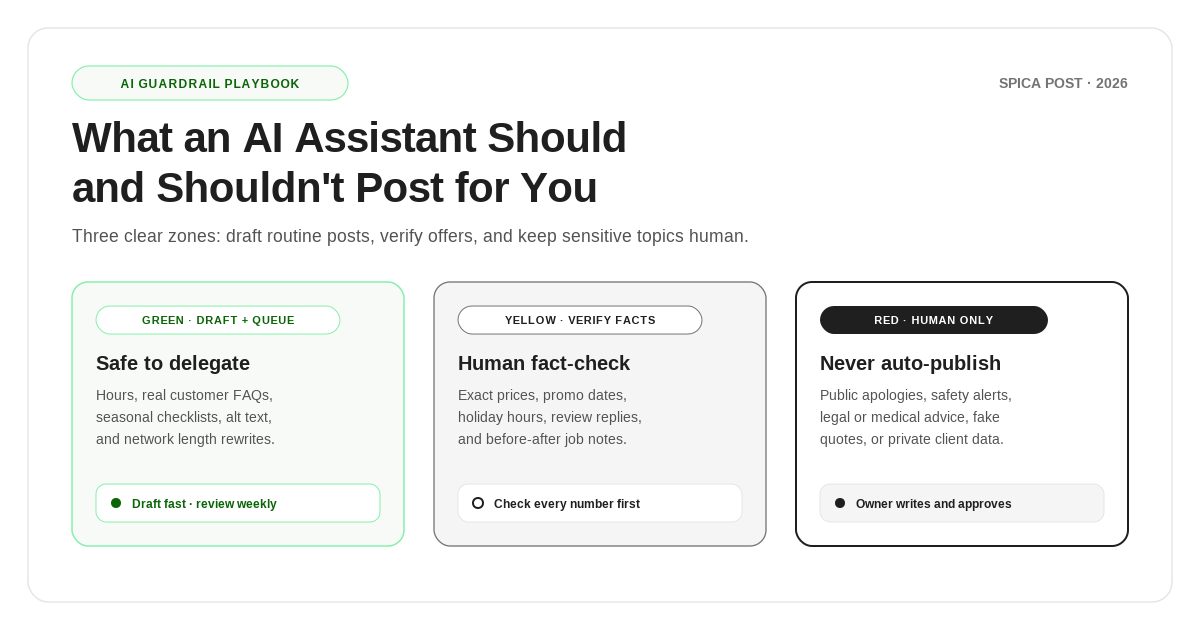
- Where AI still needs your eyes: Even with your website pasted in, an assistant cannot know that you closed early for a family graduation next Friday, raised a supplier price yesterday morning, or swapped a seasonal menu item. Never skip the final 10-minute review pass.
Your 10-minute monthly approval checklist
Before calling schedule_batch or pushing any draft live, run every batch through this seven-point human check:
- Every fact matches today’s reality: Confirm hours, phone numbers, holiday closures, pricing language, and turnaround windows reflect this coming month, not last spring’s website copy.
- Zero bracketed placeholders left behind: Scan for
[CHECK DETAIL],[Link], or generic filler lines that slipped through. - Every link lands on the right page with clean UTMs: Click at least two links in preview to verify no 404 errors and confirm Services posts land on service pages rather than your Home page.
- Every visual is a real photo you own: Confirm zero AI-generated fake job scenes and check that alt text clearly describes the real photo.
- Customer and team consent is verified: Double-check that every recognizable customer face, private property photo, or quoted review has explicit permission on file.
- Network limits pass cleanly: Confirm short networks are crisp without awkward mid-sentence truncation and that each caption opens with a useful, plain-English first line.
- Spacing feels balanced across four weeks: Check your calendar view so you never stack three FAQ posts back-to-back or leave a week with zero direct booking reminders.
Open your own five website pages this week, pick twelve real phone photos from your camera roll, and let your connected assistant build next month’s drafts from facts you already proved. Ten calm minutes of editing beats thirty stressful evenings staring at a blinking cursor.
Questions people ask
- How many social posts can I realistically create from a five-page business website?
- Five standard pages (Home, Services or Menu, About, FAQ, and Contact or Reviews) reliably produce 12 to 16 distinct monthly social posts without repeating yourself. Breaking out four service problem-and-solution angles, four FAQ counter-question posts, two local trust posts, and two to six direct booking or customer-proof updates covers three to four posts every week.
- Why does pasting my own website pages stop an AI assistant from hallucinating?
- Generic AI prompts force the assistant to guess your hours, service area, warranty terms, and pricing structure from patterns seen across unrelated websites. Feeding your actual approved website copy and telling the assistant to use bracketed placeholders for missing details confines every draft to facts you already stand behind.
- Should I let an AI image generator create photos for my website-to-social posts?
- No. Local buyers spot synthetic storefronts, melted tools, and stock-looking smiles immediately, and fake job photos damage trust faster than skipping a post. Pair every assistant-written caption with a real daylight phone photo stored in your Media Library, and always ask explicit customer permission before showing identifiable faces or private property.
- How should I link social posts back to my website without losing click attribution?
- Point every post to the exact landing page that matches its topic rather than dumping every visitor on your Home page. Add simple, consistent UTM parameters for source, medium, and campaign so your website analytics separate clicks from a Services post versus an FAQ post.
- How does Spica Post connect my website and AI assistant together over MCP?
- During brand setup, Spica Post reads your website name and logo and lets you save your colors, fonts, hours, and profession profile once. Your connected Claude or ChatGPT assistant reads that saved brand profile over MCP, generates structured drafts with write_a_week and drafts_create_batch, attaches real photos you approve, and schedules batches with schedule_batch only after your sign-off.
Sources
- Model Context Protocol (MCP) official specification
- Google Analytics Help: URL builders and campaign UTM parameters
- Anthropic Claude Help Center: Projects, instructions, and connectors
- OpenAI Help Center: Connectors and apps in ChatGPT
- Spica Post MCP Overview: tools, guided prompts, and connected assistants