AI assistants
What an AI Assistant Should and Shouldn't Post for Your Business
Keep your voice and reputation intact: delegate Green-zone drafts, fact-check Yellow-zone offers, and keep Red-zone posts strictly human.
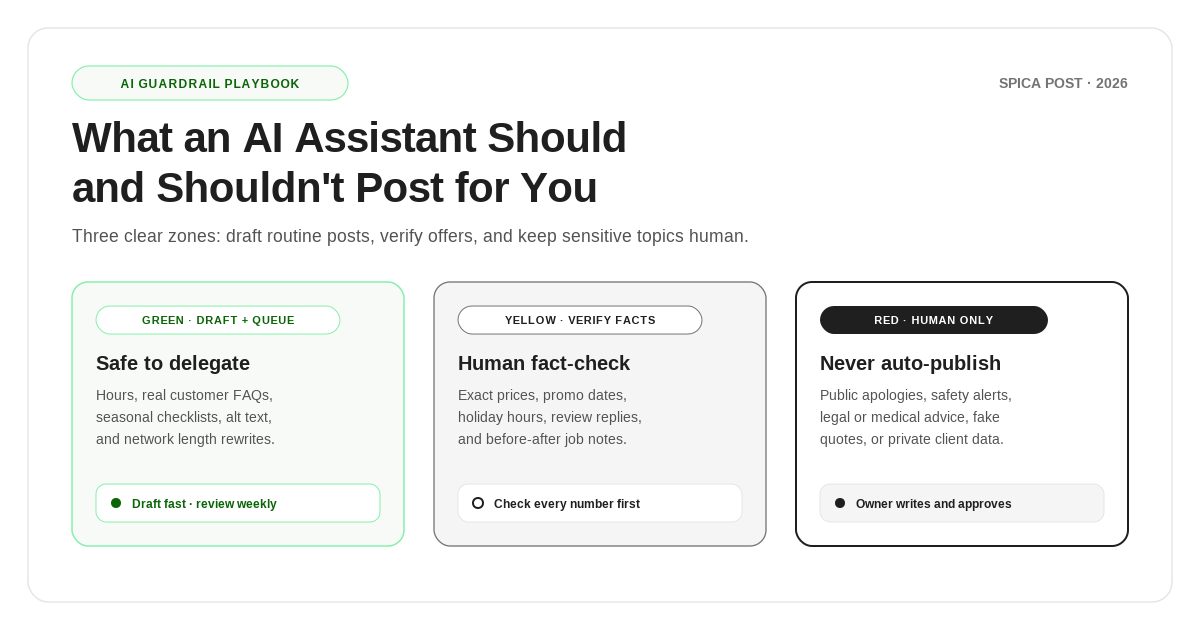
An AI assistant for small business social media should handle repeatable drafting, formatting across network limits, and queue preparation, while never publishing pricing claims, sensitive replies, legal or medical statements, or crisis updates without a human owner signing off first. The safest way to run Claude, ChatGPT, Gemini, or an MCP-connected assistant is a simple three-zone guardrail that sorts every post by real-world risk before a single word hits your feed.
Snapshot verified November 2026. Many small businesses and creators swing between two costly extremes. On one end, owners avoid AI altogether because they hate stiff, cliché-ridden captions and worry a bot will embarrass them in front of neighbors. On the other end, busy teams wire up “fully autonomous posting agents” that invent fake discounts, publish tone-deaf promotions during a local storm, or post synthetic testimonials that violate federal advertising standards. Neither extreme is necessary. When you separate low-risk assembly work from high-stakes judgment calls, an assistant saves hours every week while your reputation stays firmly under your own roof.
This guide lays out the exact Green, Yellow, and Red zone boundary system, gives you a decision matrix you can hand to staff or paste directly into your assistant’s instructions, explains how to protect customer privacy and stay compliant with FTC testimonial standards, and shows how Spica Post’s draft-first MCP workflow, internal approval queue, and workspace audit log turn those boundaries into enforceable defaults.
Why “set it and forget it” AI posting breaks small business trust
Customers forgive a typo in a quick status update from a real shop owner, because typos look human. They rarely forgive a business that publishes an invented holiday promotion, posts a cheerful discount ten minutes after a severe weather warning hits town, or responds to an upset regular with robotic corporate phrasing.
Local businesses and independent creators operate on high-proximity trust. A national software brand with two million followers can bury a bad tweet under fifty posts by Friday. A neighborhood dental clinic, bakery, landscaper, or solo consultant speaks to the exact people who walk past their door, refer friends in local Facebook groups, and leave permanent Google reviews. One careless automated post lingers in screenshots for months.
At the same time, writing from a blank box every Tuesday night is the primary reason business accounts go silent for six weeks. An AI assistant shines precisely where human energy runs dry: turning rough voice notes into clean drafts, reworking one approved announcement to fit four different network character limits, organizing seasonal checklists, and writing descriptive alt text for your real photos. The trick is deciding in advance which jobs belong to the assistant and which jobs belong solely to you.
The three-zone guardrail: Green, Yellow, and Red
Every social post a small business publishes falls into one of three risk zones. Instead of debating each caption from scratch, assign the zone first and follow its exact review workflow.
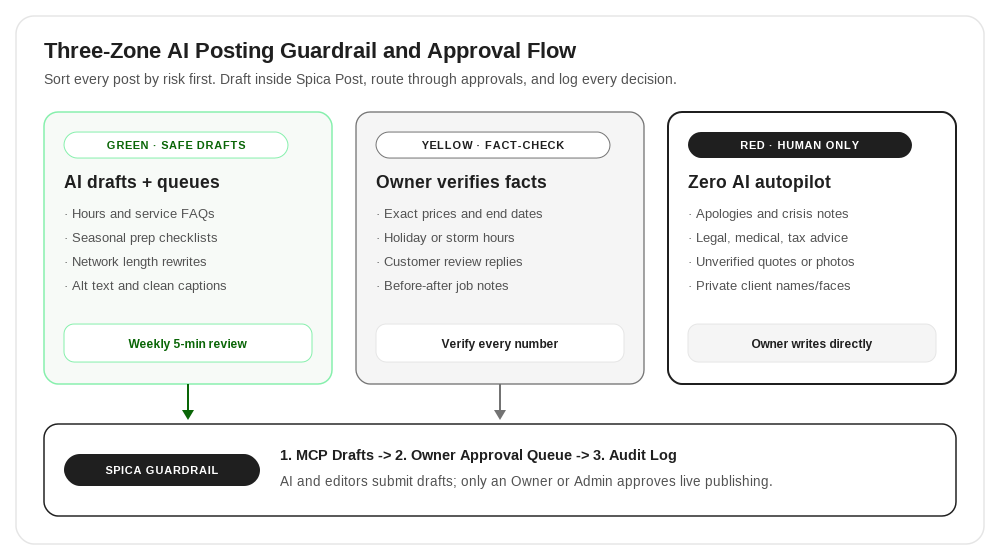
| Post category | Zone | What the AI assistant may do | Required human action before publishing | Why the boundary sits here |
|---|---|---|---|---|
| Recurring hours and service area reminders | Green | Draft from your saved brand profile and queue for review | Quick 30-second glance during weekly batch review | Low risk when pulled directly from verified profile facts |
| FAQ posts from real customer questions | Green | Turn your plain answer into clear short posts or carousel slides | Confirm no unapproved promise slipped into the wording | Educates buyers using facts you already repeat daily |
| Seasonal maintenance or prep checklists | Green | Draft step-by-step lists tailored to your profession and climate | Scan for local accuracy and realistic scope | Helpful evergreen content with high save rate |
| Cross-network length and format rewrites | Green | Adapt one approved master post to X, Bluesky, LinkedIn, or Instagram limits | Spot-check the first line and link placement | Pure mechanical formatting; zero new factual claims |
| Image alt text for your real photos | Green | Draft concise, plain-language accessibility descriptions from your notes | Verify names, items, and colors match the real photo | Improves accessibility and search clarity without risk |
| Exact pricing, bundles, and limited-time offers | Yellow | Draft promotional copy from your exact price sheet and end date | Line-by-line verify dollar amounts, exclusions, and expiration date | One wrong digit creates refund disputes and angry walk-ins |
| Holiday, vacation, or early-close hours | Yellow | Draft announcement and Google Business Profile update from your dates | Verify dates, day-of-week match, and exact reopening time | Wrong hours send neighbors to a locked door |
| Customer review replies and comment answers | Yellow | Suggest calm, personalized draft replies in your saved voice | Read the original review fully, customize details, then send yourself | Tone misreads on subtle complaints escalate quickly |
| Before-and-after job spotlights | Yellow | Polish your rough field notes into a tight caption | Confirm job details, remove identifiers, and verify written customer consent | Prevents exaggerated claims and privacy slips |
| Public apologies, outages, or safety alerts | Red | Nothing; do not delegate drafting or publishing | Owner writes personally in plain, direct language | Crises demand real accountability, never polished templates |
| Legal, medical, dental, tax, or financial advice | Red | Nothing beyond general, non-advisory scheduling reminders | Licensed professional reviews or writes every word directly | Regulatory exposure and real harm if an AI hallucinates guidance |
| Customer quotes, reviews, or synthetic “job” photos | Red | Never invent quotes, fabricate names, or generate fake work images | Publish only genuine verified reviews and real photos with consent | Violates FTC testimonial standards and destroys credibility |
| Private client data, faces, or sensitive spaces | Red | Never upload into prompts or include in drafts | Obtain explicit written permission and strip all private details | Protects customer trust, minors, and confidentiality |
Green zone: safe to draft and queue for quick review
The Green zone covers repeatable, educational, and formatting work grounded in facts you already supplied. Notice the phrase “draft and queue for review”, not “fire blindly into the internet.” Even in the Green zone, batching five drafts into a five-minute Monday review catches stiff phrasing and keeps your feed sounding unmistakably like a real person running a real shop.
- Recurring hours, parking, and booking reminders. Once your operating hours, booking URL, and service neighborhoods sit inside your brand kit or prompt file, an assistant can spin up fresh weekly reminders without repeating the same sentence verbatim.
- FAQ posts pulled from real inbox questions. Keep a running phone note of every question customers ask twice in one week (“Do I need to be home for an exterior pressure wash?” or “How far ahead should I order a custom gluten-free cake?”). Hand your two-sentence answer to the assistant and let it draft a crisp post or three-slide carousel outline.
- Seasonal checklists for your profession. Whether you run an HVAC company reminding homeowners to swap filters before summer, an accountant reminding freelancers which receipts to gather in January, or a dog groomer sharing paw-care tips before salted winter sidewalks arrive, checklists are reliable Green-zone work.
- Adapting one approved caption to different network limits. Writing one solid update for LinkedIn and manually trimming it for Bluesky’s 300-grapheme limit, X’s 280-character limit, and Instagram’s fold is pure busywork. Let the assistant handle the mechanical cuts while keeping your core sentence untouched. You can double-check lengths anytime with our free multi-network character counter.
- Descriptive image alt text. Screen readers and search engines rely on accurate alt text, yet busy owners skip it constantly. Ask your assistant to draft one plain sentence describing the real photo (“Fresh sourdough boule cooling on a wire rack beside a bakery counter in morning window light”), then confirm it matches the image before scheduling.
Yellow zone: draft only with strict line-by-line human fact-checking
Yellow-zone posts touch money, calendars, customer emotions, or specific finished jobs. An assistant can still save you 70% of the typing time here by turning bullet notes into clean prose, provided you verify every number, date, condition, and tone choice yourself before approving the post.
- Exact prices, discounts, and promo expiration dates. Large language models routinely round numbers, forget fine print (“valid Tuesday through Thursday only”), or invent urgency phrases (“only three spots left!”) you never authorized. Compare every dollar figure and date against your point-of-sale system or price sheet before hitting approve.
- Holiday and special operating hours. A classic AI slip is pairing a real date with the wrong day of the week (“Closed Thursday, July 4” in a year when July 4 falls on Saturday). Verify both the calendar day and your exact reopening hour, and mirror the exact same update on your Google Business Profile special hours.
- Public replies to Google reviews and social comments. Drafting calm replies when you are exhausted after a twelve-hour shift is helpful, especially for routine five-star thank-yous. Still, never let an assistant post a review reply unattended. Read the customer’s exact words yourself first: an assistant often misses sarcasm in a three-star review or accidentally mentions a detail the reviewer never stated publicly. For nuanced replies, follow our guide to responding to Google reviews without sounding scripted.
- Before-and-after job descriptions. If you dictate rough field notes (“Replaced a corroded 50-gallon gas water heater in a tight garage closet, swapped in expansion tank and shutoff valve”), an assistant can turn that into a clear three-sentence caption. You still verify technical accuracy so another pro or sharp homeowner does not spot an impossible claim, and you verify that the customer gave permission to show their home or vehicle.
Red zone: never let an AI assistant publish unattended (or fabricate at all)
The Red zone is non-negotiable. Certain moments carry legal, ethical, or reputational stakes where speed is worthless if the message is wrong, insincere, or fabricated.
- Public apologies, service outages, and weather or safety announcements. If your dining room flooded, a storm knocked out power across town, or a shipment batch arrived damaged, customers want plain accountability from the owner, not glossy PR clichés like “We deeply value your patience during these unprecedented times.” Write three honest sentences yourself explaining what happened, who is affected, and what you are doing next.
- Legal, medical, dental, financial, or tax advice. Regulated professions face strict licensing and liability boundaries. Even well-meaning educational posts from a clinic, law firm, insurance agency, or tax preparer can accidentally cross into individualized advice or outdated statutory rules when an AI tries to fill gaps. A qualified professional must write or sign off on every single technical claim.
- Invented customer quotes, fake testimonials, and AI-generated “work” photos. Never ask an AI to “write a realistic customer testimonial” or generate a photorealistic kitchen remodel, haircut, dental smile, or wedding bouquet to pass off as your own portfolio. The Federal Trade Commission’s Consumer Reviews and Testimonials Rule explicitly prohibits fake and AI-generated reviews and testimonials, and the FTC Endorsement Guides require honest representation of real customer experiences. Equally important, local buyers spot synthetic glossy photos immediately and assume your real work is worth hiding.
- Private customer records, addresses, and unapproved faces. Never paste a client’s full name, phone number, email, street number, invoice screenshot, or medical detail into a chat window, and never let an assistant pull unvetted photos from a shared folder onto social media.
Customer, client, and staff permission rules for AI-assisted workflows
Privacy slip-ups happen fastest when teams hand an AI assistant broad access to shared photo folders or inbox threads without clear consent hygiene. Build three strict consent habits before connecting any assistant to your media library.
Ask explicit permission before photographing or quoting anyone
Whether you run a salon, a medical spa, a roofing crew, or a solo coaching practice, always secure explicit verbal or written permission before posting identifiable customer faces, children, home interiors, vehicle license plates, or verbatim customer quotes. If you quote a public Google review, stick to first name and last initial only unless the customer explicitly agreed to full attribution, and never alter their words to make a four-star comment sound like a five-star endorsement.
Separate “approved to post” photos from raw work folders
When connecting an assistant to a local folder of photos (see our folder setup guide), keep raw job-site inspections, client intake photos, and staff snapshots completely outside your posting folder. Place only pre-screened, consent-cleared images inside an Approved-Media subfolder. That single folder boundary prevents an assistant from accidentally attaching a photo that includes a house number, a prescription bottle on a bathroom counter, or a bystander who never agreed to appear online.
Protect team members too
Staff deserve the same consent courtesy as customers. Ask employees directly whether they are comfortable appearing in photos, short clips, or named spotlights, and let them opt out without pressure. Keep an up-to-date note in your brand file naming only the team members who opted in so your assistant never suggests tagging or featuring someone who prefers privacy.
Copy-ready boundary instructions for Claude, ChatGPT, or an MCP assistant
Most AI mistakes happen because the owner never told the assistant where the fences are. Save this boundary prompt inside your Claude Project instructions, ChatGPT Custom Instructions, or brand playbook file so every session follows your three-zone standard automatically.
1. Master three-zone guardrail prompt (paste into assistant instructions)
You draft social media posts for [Business Name], a [Profession] serving [City / Region]. Follow these strict three-zone posting boundaries in every session:
2. Green-zone weekly batching request
Here are three real customer questions from this week and two approved daylight photos from our Approved-Media folder:
- Question 1: [Paste your 2-sentence real answer]
- Question 2: [Paste your 2-sentence real answer]
- Question 3: [Paste your 2-sentence real answer]
Draft three separate posts in our saved brand voice, write one short plain-language alt-text sentence for each photo, and adapt each post to fit LinkedIn and Bluesky character limits cleanly. Save all drafts inside our workspace for my Monday review and do not publish anything live.
3. Yellow-zone review reply request (with strict human sign-off)
A customer left this public review: “[Paste review text with no private contact info]”. Real context from our side: [1 sentence of verified facts, e.g., we completed the brake pad swap Tuesday morning].
Draft two brief, warm reply options under 60 words that thank them by first name only, mention the service naturally without sounding scripted, and avoid any promises I did not authorize. Show me the drafts here so I can edit and post the final reply myself.
If you want deeper techniques for stripping robotic tone out of drafts once your guardrails are set, read our step-by-step guide on how to make AI social media posts sound genuinely human and our walkthrough on using Claude AI for social media posts in your real voice.
How draft-first MCP workflows keep a human in final control
Good intentions fail on busy afternoons. When a business owner tells an assistant “do not publish without asking,” that instruction helps, yet relying purely on prompt memory is weaker than enforcing boundaries at the workspace level.
Connecting your assistant through the Model Context Protocol (MCP) lets your workspace enforce structural guardrails rather than hoping a prompt sticks across every conversation. Here is how Spica Post structures that control loop across small teams, solo owners, and multi-brand agencies:
Drafts first, validated against real network limits
When you connect Claude, ChatGPT, Gemini, or another MCP-compatible assistant through Spica Post’s MCP link, your assistant reads your saved brand profile (colors, hours, voice, topics) and creates structured drafts inside your workspace. Every draft can be checked automatically against each network’s exact character, media, and attachment limits before you ever look at it. If a network is not connected yet, Spica Post holds the waiting draft safely alongside its images rather than throwing away your work.
Role-based internal approval queue and zero-login client review links
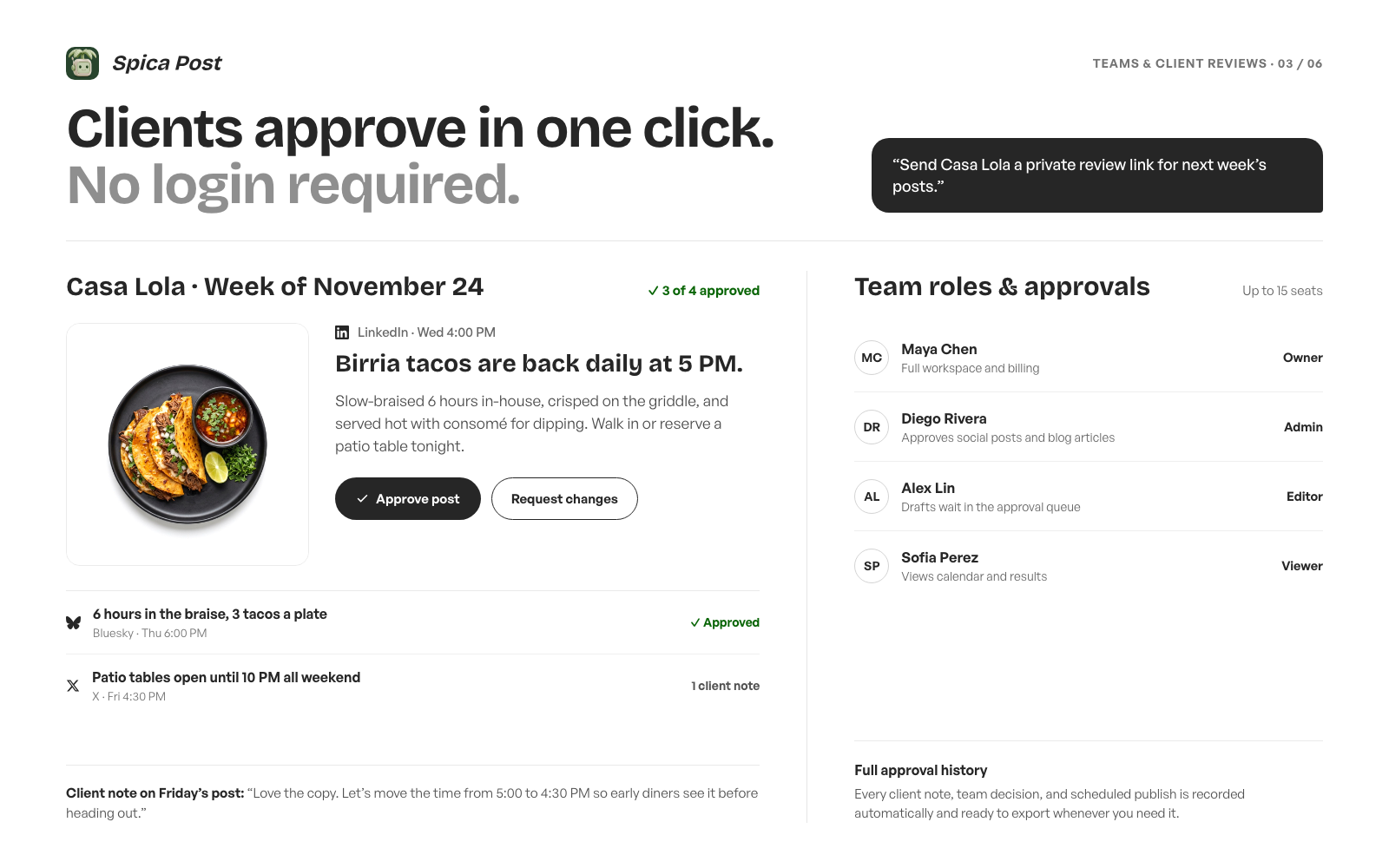
On Studio, Pro and Agency workspaces, you can turn on workspace approval controls (requireApproval) and assign clear team roles (Owner, Admin, Editor, Viewer). When an Editor or an assistant acting under restricted review policy submits a social draft or hosted blog article, direct publishing is refused cleanly and the item enters the Internal Approval Queue instead. Only an Owner or Admin can approve and atomically schedule the post, or kick it back with specific revision notes. Agencies or owners who want a partner or client to sign off without creating a login can also share a zero-login Client Review Link where the reviewer previews upcoming scheduled posts and clicks Approve or Request Changes with notes.
Searchable workspace audit log with CSV export
Whenever a post is drafted, edited, approved, rejected, scheduled, or cancelled across the web app, REST API, or MCP, Spica Post records the action in the workspace audit log, attributing MCP actions directly to the signed-in user grant rather than an anonymous bot label. You can search, filter, and export that history to a formula-safe CSV anytime for internal compliance or client reporting.
Honest trade-offs if you evaluate Spica Post in November 2026
Before wiring your assistant into any publishing tool, check what works live today versus what is still completing third-party platform review (matching our live public tracker):
- Live today across connected workspaces: One standard MCP link working with compatible assistants (including Claude, ChatGPT, Codex, Antigravity CLI, and other MCP clients), draft creation and limit validation, Branded Link Pages with printable QR codes,
/l/click-tracked short links, internal approval queues, shareable client review links, workspace audit logs, and direct publishing plus Auto-crosspost across X, LinkedIn personal profiles, Bluesky (including live Unified Inbox replies and whole-account analytics sync), and Mastodon. - Built and completing platform review or verification: Connectors for Google Business Profile (API approved and enabled in production, awaiting first live service-area profile verification), Instagram, Facebook Pages, and Threads (completing Meta App Review), LinkedIn Company Pages (awaiting LinkedIn approval for the second app), TikTok (app review submitted, awaiting production approval and Content Posting API audit), YouTube (OAuth verified November 2026; completing API Services compliance audit), and Pinterest (built, awaiting Standard access) are built in the app and finishing external network approvals. Until Meta and Google direct publishing open across every workspace, many small businesses draft, validate, and approve their whole week inside Spica Post, publish directly to X, LinkedIn personal, Bluesky, and Mastodon, and copy approved drafts straight to Instagram or Facebook in two minutes.
- No hidden per-channel markups: Check current flat workspace plans and included capabilities directly on our pricing page rather than relying on third-party blog summaries.
A 20-minute checklist to set up your AI posting boundaries today
You do not need an enterprise IT committee to lock down AI social media safely. Run through this six-step checklist once and revisit it whenever you add a new service, staff member, or seasonal offer:
- Write a one-page truth sheet. List your current operating hours, street address or service radius, core services, booking URL, and five phrases your business never uses. Store it where your assistant reads it every session.
- Paste the three-zone prompt above into your assistant. Explicitly name your Green, Yellow, and Red boundaries so the assistant flags prices, dates, and review replies for verification instead of guessing.
- Create an
Approved-Mediafolder. Move only real, daylight photos with clear customer and staff permission into that folder; keep invoices, private client snapshots, and raw inspection photos strictly separate. - Route drafts through an approval queue. Whether you use Spica Post’s internal approval queue or a simple Monday morning calendar block, establish a rule that nothing goes live from an AI session without human eyes on the final text and image.
- Audit one week of outputs against Google and FTC standards. Confirm every factual claim matches your real prices, every quote belongs to a real customer who consented, and every helpful post serves real readers rather than churning filler (aligned with Google’s guidance on helpful content).
- Keep Red-zone updates offline from automation. Whenever weather closes your shop, a mistake requires a real apology, or a regulated technical question comes up, close the AI window and write three honest sentences yourself.
Used with clear boundaries, an AI assistant stops being a reputation gamble and becomes the quiet production helper every small business owner wishes they had on Sunday evening: fast on the repeatable drafts, disciplined on network limits, and always waiting for your final yes.
Questions people ask
- Should an AI assistant ever publish directly to my business social accounts without my review?
- For most small businesses and creators, no. Use an AI assistant to draft captions, adapt length for different network limits, and queue posts for review, while keeping final publishing behind a human approval step. One unverified holiday hour, wrong price, or tone-deaf reply during a local outage costs far more trust than a five-minute weekly review saves.
- Which social media tasks are safest to delegate to an AI assistant?
- Start in the Green zone: recurring business hours reminders, answers to common customer questions you already typed out, seasonal preparation checklists, adapting one approved caption across different network character limits, and writing plain descriptive alt text for real photos you took yourself.
- Is it legal to let an AI assistant write customer testimonials or fake job photos?
- No. Under the Federal Trade Commission Consumer Reviews and Testimonials Rule, businesses cannot publish fake or AI-generated customer reviews and testimonials, or fabricate experiences from people who did not actually use the service. Every quote and job photo must come from real work and carry the customer's explicit permission.
- How does an MCP connection differ from pasting prompts into a chat window?
- Copy-pasting from a chat window means manually copying text, checking network limits by hand, uploading images one by one, and losing track of who changed what. An MCP connection lets Claude, ChatGPT, Gemini, or another compatible assistant read your saved brand kit, create structured drafts inside your workspace, check limits automatically, and route posts into an approval queue.
- What information should I never paste into an AI assistant when drafting social posts?
- Never share private customer contact details, street addresses, invoice numbers, medical or dental records, legal case facts, license plates, or unapproved photos of customers and children. Strip all personal identifiers before asking an assistant to summarize a job or draft a case note.
Sources
- FTC: Consumer Reviews and Testimonials Rule Questions and Answers
- FTC: Endorsements, Influencers, and Reviews Business Guidance
- Google Search Central: Google Search's guidance about AI-generated content
- Model Context Protocol (MCP): Introduction and Specification
- Spica Post: One MCP Link for Every Assistant