Account security
How to Hand Your Social Media to Someone Without Losing Your Accounts
Never hand over your login password. Keep root ownership on a company email with 2FA, assign native delegated roles, and revoke access cleanly.
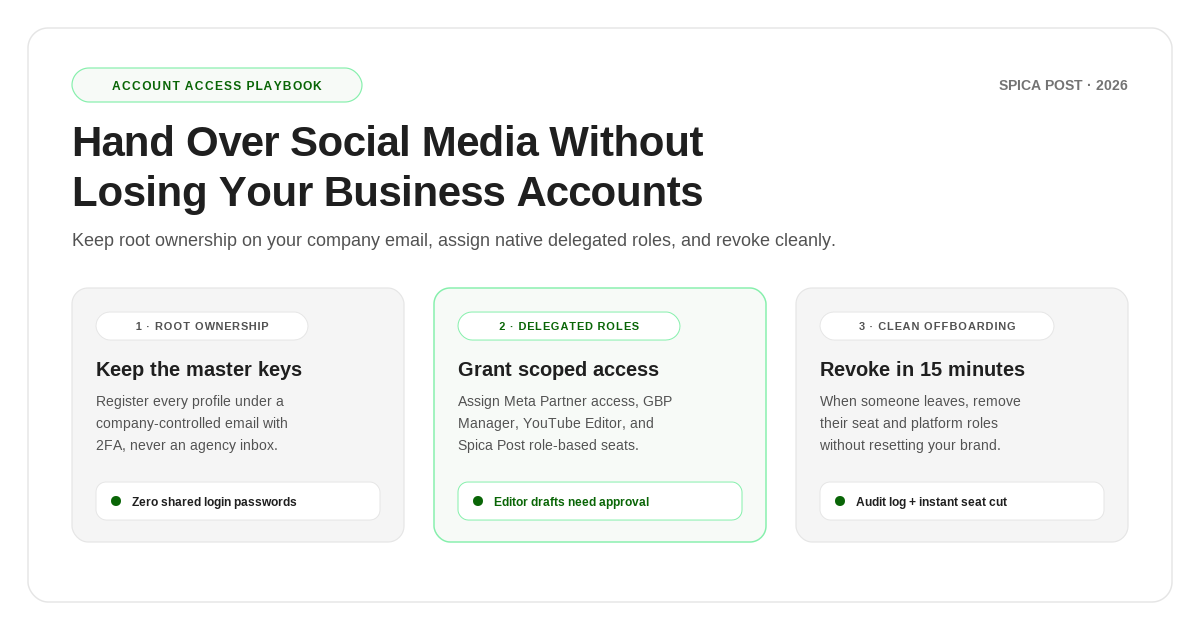
To give someone access to business social media without risking lockouts or lost accounts, never hand over your main login password: keep root ownership locked under a business-controlled email and two-factor authentication (2FA), then grant scoped, revocable roles inside each platform or through a role-based scheduling workspace. That single boundary separates daily posting from legal control of your brand, your follower audience, your reviews, and your ad history.
Every week, small businesses and creators discover too late that their Instagram account sits inside a former freelancer’s personal Meta Business Portfolio, their Google Business Profile belongs to an old web designer’s Gmail, or their Facebook Page disappeared into a dispute over an unpaid final invoice. Recovering hijacked or orphaned profiles through platform support takes weeks of utility bills, business registrations, and domain checks, and sometimes ends with starting over from zero followers.
This governance playbook walks through the root ownership vault to lock down before you invite anyone, exact platform-by-platform delegated access paths (verified November 2026), contract safeguards for agencies and freelancers, how role-based workspaces like Spica Post eliminate password sharing cleanly, a 15-minute offboarding checklist, and a calm quarterly access audit.
The golden rule: keep root ownership, delegate daily work
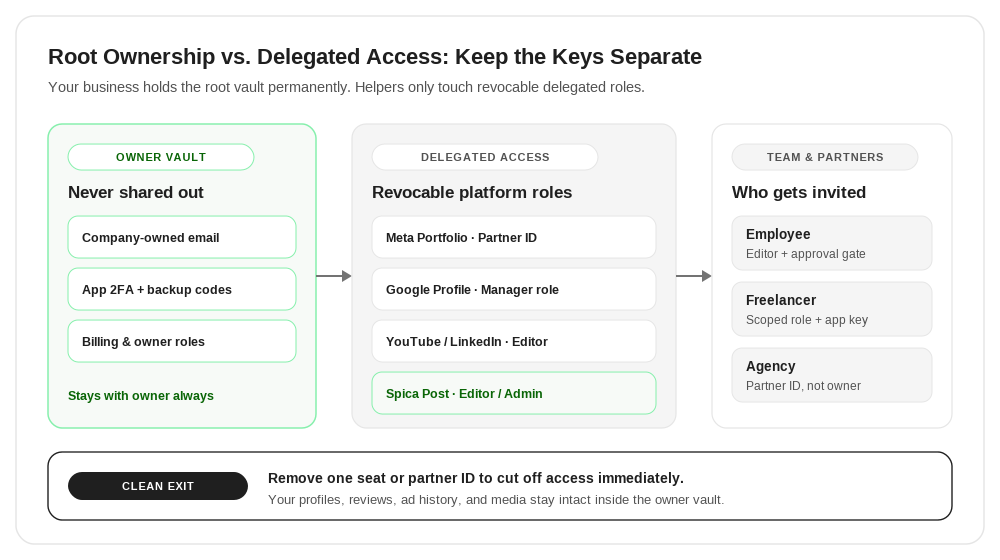
Root ownership means holding the highest administrative seat on every social profile, business manager, domain, and billing account under an email address your business permanently controls. Delegated access means giving an employee, freelancer, or agency just enough permission to draft posts, upload photos, respond to comments, or manage campaigns, using their own separate login that you can remove with one click.
Why sharing login passwords breaks small businesses
Texting a shared username and password to a new hire or contractor feels fast on Monday morning, and turns expensive the moment anything changes. Four operational failures show up repeatedly when small businesses and creators share raw passwords:
- Constant 2FA bottlenecks and security lockouts. Modern platforms flag logins from unfamiliar cities and devices. Either you spend your week texting six-digit security codes while trying to serve customers, or someone turns off 2FA to make logging in easier, leaving the account wide open to phishing.
- Zero visibility into who published or changed what. When three people sign in under
owner@shop.com, nobody can trace who posted an unapproved offer, changed store hours, or deleted a customer comment. - Painful offboarding when someone leaves. The moment a part-time employee quits or an agency contract ends, you have to scramble through six platforms resetting passwords, reconnecting every third-party integration, and praying no hidden recovery phone number or backup email was left behind.
- Accidental or hostile account takeovers. Anyone holding the root login and password can swap the recovery email, remove your phone number, or transfer administrative control. Even when no malice exists, freelancers change jobs, lose phones, or close old Gmail accounts, stranding your profile indefinitely.
Build your root ownership vault before inviting anyone
Before you send a single invite to an employee, virtual assistant, or marketing agency, spend twenty minutes tightening your own root foundation:
- Move root logins onto a company-controlled email. Use an address on your own domain (such as
admin@yourbusiness.comorowner@yourbusiness.com) where you control the domain registrar and mailbox hosting. Avoid registering business assets under a contractor’s email or an employee’s personal address. - Turn on authenticator-app 2FA and store backup codes safely. Prefer an authenticator app or security key over SMS texts whenever a platform supports it. Save your recovery codes and root credentials inside a dedicated business password manager, never in a shared spreadsheet or chat thread.
- Add one trusted backup owner inside your company. If you are a co-founder or have a business partner or spouse on the legal entity, assign a second trusted internal owner on Meta Business Portfolio, Google Business Profile, and YouTube so a lost phone never locks the entire business out.
- Verify ownership of your core assets directly. Confirm that your Facebook Page, Instagram professional account, ad account, Google Business Profile, YouTube Brand Account, LinkedIn Page, and TikTok Business Center all sit inside containers owned by your company, not inside an agency’s master portfolio.
Platform-by-platform delegated access guide (2026)
Snapshot verified November 2026. Each social network names its administrative seats differently and sets different permission limits on what delegated helpers can change. Use the matrix below as your master reference before granting access on any channel.
| Platform | Root owner role (keep on your email) | Delegated role to assign helpers | What to avoid and key limit to know |
|---|---|---|---|
| Facebook & Instagram (Meta) | Full control inside your own Meta Business Portfolio | Partial access (Tasks) for employees; Partner access via Business ID for agencies | Never let an agency create your Business Portfolio or hold sole Full Control over your Page, Instagram account, or Ad Account |
| Google Business Profile | Primary Owner on your company Google account | Manager role for staff, freelancers, and agencies | Never make an outside contractor Primary Owner; note Google enforces a 7-day wait before a new owner can transfer primary status |
| YouTube | Primary Owner on Brand Account or Channel Owner | Manager, Editor, or Editor (limited) in YouTube Studio Permissions | Avoid granting Owner to contractors; Editor lets helpers upload and edit without deleting the channel or viewing revenue on limited tier |
| LinkedIn Page | Super Admin (owner plus one internal backup) | Content Admin (or Analyst for read-only reporting) | LinkedIn Pages attach to real personal profiles; never share your personal LinkedIn login credentials |
| TikTok | Admin inside your own TikTok Business Center | Standard / Operator or Analyst asset permissions | Avoid handing over the main TikTok app phone number and SMS code; separate ad and posting permissions in Business Center |
| Bluesky | Main account email, handle, and root password | Individual labeled App Password per tool or helper | Never give away your primary Bluesky password; app passwords cannot delete your account and can be revoked one by one |
| X (Twitter) | Main account email, phone, and root password | OAuth-connected workspace seat (such as Spica Post) | Basic X accounts lack native multi-user Page roles; connecting once via OAuth inside a team scheduler avoids password sharing |
Facebook and Instagram via Meta Business Portfolio
Facebook Pages and professional Instagram accounts cause more ownership disputes among small businesses than every other network combined, largely because people confuse personal Facebook logins with business asset ownership. Under Meta Business Help Center guidance on Business Portfolio permissions, your company should create and own its own Meta Business Portfolio (formerly Business Manager), place your Facebook Page, linked Instagram professional account, Ad Account, and Pixel inside it, and keep Full Control restricted strictly to company owners.
When you hire an employee or in-house coordinator, open Meta Business Settings, go to Users -> People, invite their work email with Partial Access (not Full Control), and assign specific asset tasks such as Content (create, schedule, and manage posts), Community Activity (reply to comments and messages), and Insights. Leave Full Control, billing edits, and user removal unchecked.
When you hire an agency or external contractor, go to Users -> Partners -> Give a partner access to your assets, enter the agency’s Meta Business ID, and assign only the Page, Instagram account, and Ad Account tasks they need. Partner access is clean because the agency manages their own staff internally inside their Business Portfolio; if a junior coordinator leaves the agency, the agency removes them on their side, and if you end your relationship with the agency, removing their single Business ID severs access for their entire team at once.
Google Business Profile: Primary Owner versus Manager
Your Google Business Profile drives local phone calls, direction requests, and customer reviews, making it one of the highest-value digital assets a local business owns. As documented in Google Business Profile Help for adding and removing owners and managers, Google separates profiles into three tiers: Primary Owner, Owner, and Manager.
Keep Primary Owner permanently tied to a Google account owned by your company (ideally Google Workspace on your own domain, or a tightly secured owner Gmail reserved exclusively for business administration). Invite employees, local SEO specialists, or agencies strictly as Managers. A Manager can update business hours, add photos, publish Google updates and offers, and respond to customer reviews, which covers virtually every daily marketing task. A Manager cannot remove owners, transfer ownership, or delete the listing.
Two safeguards are worth noting on Google Business Profile. First, never hand Primary Owner status to a web designer or marketing agency “just to verify the listing.” Complete verification under your own Google account, then add them as a Manager. Second, Google imposes a seven-day waiting period after adding a new Owner or Manager before certain ownership changes can proceed, which protects you against abrupt hijack attempts, though it also means you should add a trusted internal backup Owner before you ever face an emergency.
YouTube: Brand Account and Channel Permissions
If your business runs a YouTube channel for product demos, local walkthroughs, or Shorts, avoid handing out the Google login attached to the channel. As explained in YouTube Help for channel permissions, YouTube Studio supports fine-grained roles directly inside Settings -> Permissions (and on Brand Accounts via Google Account permissions).
Keep Owner (or Primary Owner on a Brand Account) strictly for yourself. For video editors, freelancers, or social coordinators, pick the narrowest role that fits their job:
- Editor: Can upload videos, write titles and descriptions, edit playlists, and go live, but cannot delete videos permanently, delete the channel, or add and remove other users.
- Editor (limited): Same upload and editing ability as Editor, without access to revenue figures inside YouTube Analytics.
- Subtitle Editor: Restricted exclusively to adding, editing, and removing captions and translations.
- Manager: Reserved only for a trusted senior teammate who needs to add or remove other channel roles and manage content broadly, still without permission to delete the channel.
If your channel was originally created years ago on your personal Gmail without a Brand Account, check YouTube Studio’s Permissions tab first: YouTube now supports Studio-level permissions directly on most personal channels as well as Brand Accounts, letting you invite helpers by their own Google email without ever sharing your password.
LinkedIn Pages: Super Admin versus Content Admin
LinkedIn ties company pages directly to real individual LinkedIn profiles, which tempts some owners into handing over their personal LinkedIn email and password to a ghostwriter or marketer. Never share your personal LinkedIn login: doing so violates LinkedIn’s user agreement, exposes your private messages and connections, and frequently triggers identity-verification locks.
Instead, review LinkedIn Help on Page admin roles and assign page roles cleanly under Settings -> Manage admins:
- Super Admin: Keep this seat for the business owner and one trusted internal officer. Super Admins can add or remove admins, deactivate the Page, and edit core company details.
- Content Admin: Assign this role to employees, social media managers, and agencies. Content Admins can create and schedule Page posts, publish newsletters, upload documents, manage comments, and view Page analytics without modifying admin seats or company ownership.
- Analyst: Give this read-only seat to contractors or advisors who only need to inspect performance reports.
For a personal LinkedIn profile belonging to the founder (which often gets stronger organic reach for small businesses and creators), have your helper write drafts inside your scheduling workspace or a shared document, review every draft yourself, and publish through your own OAuth-connected workspace seat where you hold final approval.
TikTok Business Center, Bluesky app passwords, and X
Short-form and text-first networks vary widely in how cleanly they support teams, so knowing each platform’s native limits prevents sloppy workarounds:
- TikTok: Use TikTok Business Center (detailed in the TikTok Business Help Center overview of roles and permissions) to house your ad accounts, pixels, and linked Business Accounts under your company’s Admin login, then invite staff or agency partners with Standard or Analyst permissions. For organic TikTok video posting when a contractor edits clips on their phone, have them upload finished vertical MP4s into your shared asset library or scheduling approval queue rather than signing into your main TikTok app with SMS codes.
- Bluesky: Bluesky offers one of the cleanest lightweight delegation mechanisms available today: App Passwords. Inside Settings -> Privacy and Security -> App Passwords, generate a dedicated password labeled with the helper’s or tool’s name (for example,
Spica Post WorkspaceorContractor Sam - Q4). App passwords allow posting and engagement without granting access to delete the account, change your email, or alter account security. When a project ends, click the trash icon beside that exact app password and access stops immediately. - X (Twitter): Standard X accounts do not offer free native Page roles equivalent to Facebook or LinkedIn Pages. Passing around an X username and password triggers frequent automated lockouts and exposes your recovery email. Connecting your X account once via OAuth inside a role-based workspace lets teammates draft and queue posts while never seeing your X password.
Four contract and intake safeguards before onboarding an agency or freelancer
Technical permissions protect your live accounts; clear written expectations protect your creative files, brand assets, and customer trust before the first post ever goes live. If you are still weighing whether to keep social media in-house or hire outside help, compare the real monthly math and oversight trade-offs in our DIY social media versus hiring an agency guide.
Put asset ownership and handoff timelines in writing
Before paying a deposit or granting a single role, include a short plain-English ownership clause in your agreement or kickoff email covering four points:
- All accounts remain company property. Any social account, ad account, Link Page handle, pixel, audience list, or Google listing created or managed during the engagement belongs exclusively to your business from day one.
- All paid creative and raw files transfer cleanly. Final captions, editable graphics, raw photos, and original video exports live in a shared folder owned by your company (not locked inside the agency’s private Canva or Drive account).
- No unauthorized third-party connections. Contractors will not connect your profiles to outside automation tools, browser extensions, or unapproved apps without written approval.
- Defined handoff window. Upon cancellation by either side, all draft assets and reporting exports are delivered within five business days, and the owner may revoke all delegated platform roles immediately at contract end.
Keep customer consent records inside your own company folder
When an agency, freelancer, or new employee handles your photography or testimonials, customer privacy becomes a shared responsibility. Always keep explicit written or documented verbal customer permission before posting identifiable faces, client homes, job-site walkthroughs, patient or family photos, or quoted reviews.
Store signed photo releases, permission screenshots, or email approvals inside your own company folder alongside the raw images, labeled clearly with which photos are cleared for public posting. Never assume a contractor confirmed permission on a busy shoot day, and never let consent records sit solely in a freelancer’s private text messages where you cannot verify them six months later.
Copy-ready agency or freelancer onboarding message
Send this short onboarding note before kickoff so every access boundary is crystal clear on day one:
Subject: Account access and asset ownership setup for [Business Name]
Hi [Name], excited to get started together this month.
To keep our accounts secure and easy to manage for both of us, we keep root ownership of all social profiles, Meta Business Portfolio, Google Business Profile, and ad accounts under our company email and never share login passwords. Please send over:
Please also confirm that all raw photos, videos, and approved drafts will be saved inside our shared [Business Name] folder, and that no customer photo or testimonial goes live without documented client permission on file. Looking forward to a smooth kickoff!
How role-based scheduling workspaces stop password sharing
Native platform roles solve ownership on each individual network, yet logging directly into five separate apps still leaves small businesses exposed to accidental live typos, unreviewed offers, and fragmented oversight. Adding a role-based scheduling workspace creates a clean operational firewall between your connected accounts and day-to-day drafting.
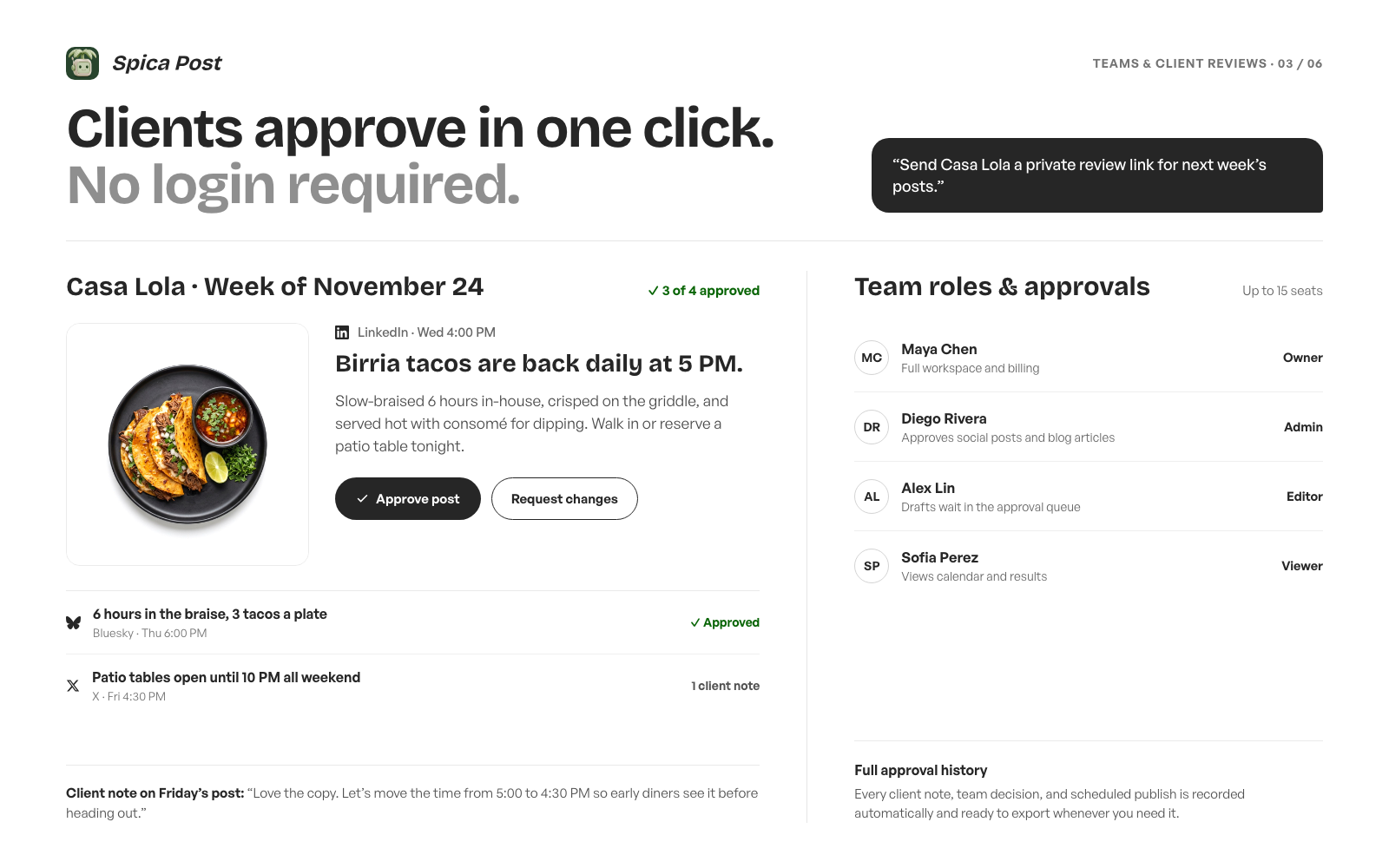
In a workspace architecture like Spica Post (see our full security overview), the business owner connects each social network once using official OAuth authorization (or a revocable Bluesky app password). Credentials stay sealed server-side inside the workspace, so invited employees, freelancers, or agencies never see a network password, never ask you for a 2FA code, and never need direct admin logins just to write a week of captions.
Four workspace roles and built-in Editor approval gates
When you invite a collaborator inside Spica Post, you send an email invite with a role-bound link valid for seven days (with a copyable invite link available right at creation) and choose from four distinct permission levels:
- Owner: Holds full control over the workspace, billing, connected accounts, team members, approval settings, and audit exports.
- Admin: Can manage connected accounts, invite or adjust team roles, approve submitted drafts, and publish or schedule directly.
- Editor: Can upload media, write social drafts, and draft hosted blog articles, but cannot publish or schedule directly. Whenever an Editor attempts to publish or schedule a post or article (whether through the web composer, the REST API, or a connected AI assistant via MCP), the server blocks direct publication (
approval required) and routes the draft into the internal approval queue for an Admin or Owner to approve or return with revision notes. - Viewer: Read-only access to the calendar, drafts, and results without modifying content or publishing anything.
For multi-brand owners or agencies managing several client businesses under one roof, Spica Post also supports shareable zero-login client review links (/review/<token>), letting an external client preview scheduled posts and click Approve or Request changes with notes without needing a seat or any social login at all. You can read more about isolating multiple brands cleanly in our guide to managing multiple social media accounts.
Instant revocation and a searchable workspace audit log
Two governance details matter enormously the moment something goes wrong or a contractor rotates off your account:
- Instant revocation across every surface. Removing a teammate from a Spica Post workspace cuts off their web dashboard access, REST API access, and connected MCP assistant access immediately. You never have to change a single social network password or interrupt scheduled posts already queued for the week.
- Searchable workspace audit log with CSV export. Every mutating workspace action (creating or editing drafts, submitting or approving posts, changing team roles, connecting or disconnecting accounts, and actions taken through a connected assistant attributed to the real signed-in user) records in the workspace audit log and exports cleanly as CSV.
Check current flat workspace plans, included team seat allowances, and feature availability anytime on our pricing page.
Honest November 2026 trade-offs if you consider Spica Post
Transparency matters especially when evaluating security and team governance tools, so here is the exact November 2026 status of Spica Post for small businesses and creators:
- Built and live today for team governance: Role-based team seats (Owner, Admin, Editor, Viewer), 7-day emailed invite links, mandatory Editor approval gates across web/API/MCP, shareable zero-login client review links, instant member removal, and the searchable workspace audit log with CSV export are all built and active. Direct OAuth publishing is live today for X, LinkedIn personal profiles, and Bluesky (plus Mastodon on any public server, built with zero central app review).
- Networks completing approval or verification: Google Business Profile is built, approved by Google, and enabled in production, awaiting first live service-area profile verification. Connectors for Instagram, Facebook Pages, Threads, LinkedIn Company Pages, TikTok, and YouTube are built and completing each platform’s app review or compliance audit. Until direct Meta and Google publishing open across every workspace, keep native delegated roles configured inside Meta Business Portfolio and Google Business Profile while drafting, approving, and logging your content calendar cleanly inside Spica Post.
- Enterprise governance limits not built yet: Spica Post does not yet offer SAML/SSO, custom per-network permission matrices (for instance, letting one Editor post directly to Bluesky while requiring approval only on LinkedIn), or self-serve transfer of root brand ownership from one login to another. If your company requires enterprise SSO today, keep that limit in mind when selecting tools.
The 15-minute offboarding checklist when someone leaves
Whether an employee gives two weeks’ notice amicably or an agency contract ends unexpectedly, follow this exact sequence on the final day so zero lingering access stays open. Complete steps one through eight in order:
- Remove their seat inside your scheduling workspace first. In Spica Post (or whichever scheduler you use), remove the departing member immediately so they cannot publish queued posts, copy drafts, or act through a connected AI assistant.
- Revoke Meta Business Portfolio access. Open Meta Business Settings, remove the individual under Users -> People (or remove the agency under Users -> Partners), and confirm your Facebook Page’s Page Access list shows zero leftover personal profiles from the departed person.
- Remove Google Business Profile Manager access. Open your Google Business Profile settings, go to People and access, delete the departing email, and confirm your company account remains listed as Primary Owner.
- Remove YouTube Studio channel permissions. In YouTube Studio under Settings -> Permissions (and Brand Account Manage Permissions if applicable), remove their Manager or Editor role.
- Remove LinkedIn Page Content Admin access. Open your LinkedIn Page under Settings -> Manage admins, remove their seat, and confirm only current internal leaders hold Super Admin.
- Remove TikTok Business Center access and third-party apps. Remove their user or partner seat in TikTok Business Center and inspect authorized third-party apps on any account they touched.
- Delete dedicated Bluesky app passwords, API keys, and webhooks. In Bluesky Settings, delete the labeled app password assigned to that person or contractor. Inside your workspace developer settings, revoke any API keys they created or had access to.
- Audit active sessions, recovery info, and rotate shared passwords only if necessary. Verify that recovery emails and phone numbers on every root account still belong strictly to your business. If you ever broke the golden rule and shared a raw login password in the past, change that password now, click “Log out of all other sessions,” and verify authenticator 2FA is active.
Copy-ready polite offboarding confirmation message
When wrapping up cleanly with a freelancer or agency, send a short factual note to close out deliverables and confirm the access timeline:
Subject: Wrapping up our engagement and account access handoff
Hi [Name], thank you for your work supporting [Business Name] over the past [months/quarter].
As our engagement wraps up on [Date], please make sure any final drafts, raw photos, videos, and monthly performance exports are uploaded to our shared [Folder Name] folder by [Time/Date]. Per our standard security routine, we will remove delegated access across our scheduling workspace, Meta Business Portfolio, Google Business Profile, and other connected channels right after wrap-up. Wishing you all the best ahead!
A quarterly 10-minute access audit for small businesses
Even careful teams accumulate forgotten seats over a year: a seasonal intern still listed as a Facebook editor, an old SEO freelancer lingering as a Google Business Profile Manager, or an unused API key left over from a website redesign. Put a recurring 10-minute reminder on your calendar on the first Monday of January, April, July, and October.
During those ten minutes, open your password manager’s root asset sheet and check five spots: Meta Business Portfolio people and partners, Google Business Profile people and access, LinkedIn Page admins, YouTube Studio permissions, and your Spica Post team members and API keys. Remove anyone who no longer actively works on your marketing, confirm your backup internal owner still has working access, and export a fresh snapshot of your workspace audit log if you operate in a regulated or multi-location profession.
Delegating social media should free up hours in your week, not hand away the keys to your business reputation. Lock root ownership inside your company email with 2FA today, invite every helper through revocable roles with clear approval gates, and you can hire, collaborate, or transition partners smoothly without ever risking your accounts.
Questions people ask
- Should I ever share my main social media login password with a freelancer or agency?
- No. Keep every root login, primary email, and two-factor authentication method under your direct control. Grant access through native platform roles (such as Meta Business Portfolio partner access, Google Business Profile Manager, YouTube Editor, or LinkedIn Content Admin) or through a role-based scheduling workspace where you connect the account once via OAuth and invite helpers to their own seats.
- What happens if an agency sets up our social accounts using their own email address?
- When an agency creates your Meta Business Portfolio, Google Business Profile, or ad account under their own login, the platform treats the agency as the legal controller of that asset. If the contract ends poorly or the agency closes, recovering a locked profile or ad history can take weeks of identity appeals and sometimes fails completely. Always create the core profiles yourself first, then invite the agency as a partner.
- Which Google Business Profile role should I give an employee or marketing agency?
- Keep Primary Owner on a Google account your business controls directly, and assign the Manager role to employees, freelancers, or agencies. Managers can update business hours, publish Google posts, upload photos, and answer customer reviews, while only the Primary Owner can remove other owners or delete the profile.
- How can I safely let someone post to Bluesky without giving them my main password?
- Bluesky lets you generate separate app passwords inside Settings under Privacy and Security. Create one labeled app password for a specific scheduling tool or contractor, keep your primary account password private, and delete that single app password the moment the contract ends without disrupting anything else.
- What should I do first when a social media employee or contractor leaves?
- Revoke their seat in your scheduling workspace first so no queued posts, API keys, or connected assistant sessions remain active. Immediately after that, remove their native roles inside Meta Business Portfolio, Google Business Profile, YouTube Studio, LinkedIn Pages, TikTok Business Center, and revoke any dedicated Bluesky app passwords.
Sources
- Meta Business Help Center: Manage people and permissions in Meta Business Portfolio
- Google Business Profile Help: Add and remove owners and managers for your profile
- YouTube Help: Add or remove access to your YouTube channel
- LinkedIn Help: LinkedIn Page admin roles and permissions
- TikTok Business Help Center: About TikTok Business Center roles and permissions