Content repurposing
How to Repurpose One Photo Into a Full Week of Social Media Posts
Turn one crisp 30-second phone photo into 7 distinct weekly posts across feeds, Google Business Profile, Stories, short video, and your Link Page.
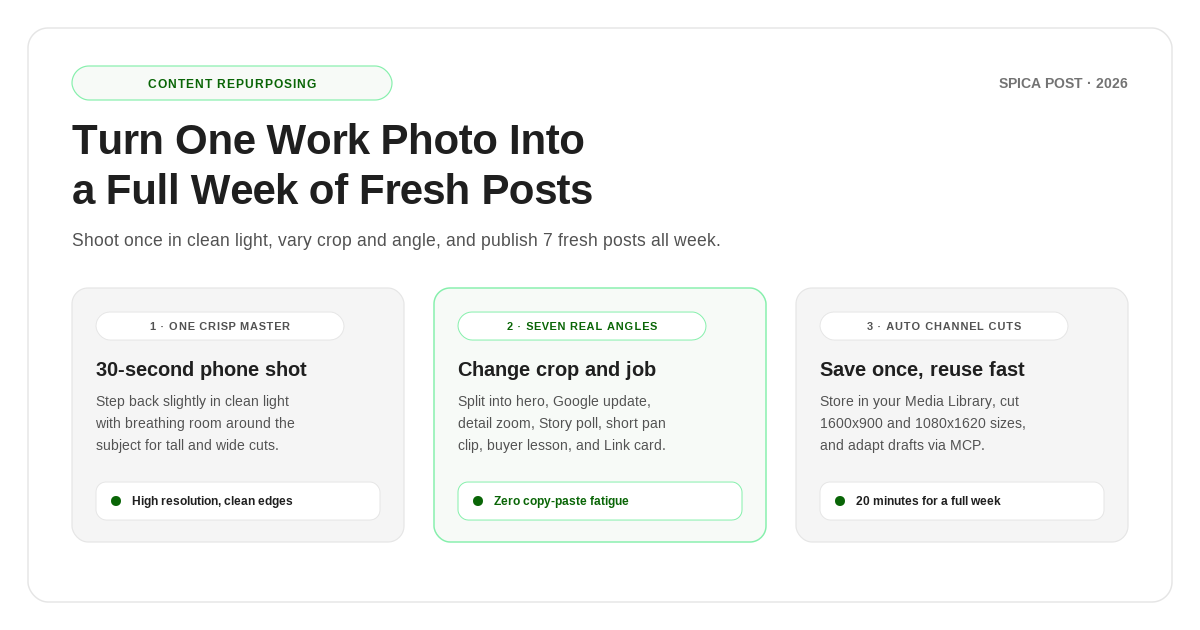
To repurpose content for social media without exhausting your calendar or annoying your audience, capture one crisp, well-lit work photo with clean margins around the subject, then split it into five to seven genuinely different posts by changing three variables every time: the crop or subtle motion, the exact question your caption answers, and the platform format. Most busy owners stop posting not because they lack great work, but because they mistakenly believe every single day on social media demands a brand-new photoshoot.
In reality, only a small fraction of your followers ever sees a given post, and even loyal readers check Google Maps, Instagram Stories, LinkedIn, and Facebook for completely different reasons. One finished project photo taken in thirty seconds on your phone already holds a customer story, a local Google update, a craft close-up, a quick poll, a ten-second FAQ clip, a buyer-education lesson, and a clickable showcase card for your Link Page.
This guide shows how to shoot one master phone photo built to survive every crop, maps all seven non-repetitive formats across a week, walks through a complete real-world example of one kitchen cabinet installation (plus a bakery variation), lays out aspect ratios and safe-zone limits for November 2026, explains how Spica Post’s Media Library, automatic channel cuts, and repurpose_content MCP prompt streamline the workflow cleanly, and ends with a repeatable 20-minute Monday checklist.
Why copying the same photo seven times fails (and how real repurposing works)
Dropping the identical uncropped image and verbatim paragraph onto five networks at 9:00 AM feels robotic for two obvious reasons. First, platform geometry fights back: a tall portrait image gets its top and bottom sliced off on X or Google Business Profile, while a wide landscape shot turns into a tiny postage stamp inside Instagram Stories. Second, copying the exact same caption ignores why a person opened that specific app.
The three-variable swap that eliminates follower fatigue
Real repurposing feels completely fresh to a human scrolling their feed because every reuse changes three concrete elements together:
- Change the visual framing: Move from the wide finished scene (4:5 or 4:3) to a tight zoomed-in material detail (1:1), a text-framed vertical Story (9:16), a slow pan-zoom motion clip (9:16), a clean landscape card (16:9), or a tall evergreen bookmark graphic (2:3). Visually, even a follower who liked Monday’s wide kitchen shot barely registers Wednesday’s tight close-up of a dovetail drawer joint as the same file.
- Change the caption’s job: Never repeat the same pitch twice. Let Day 1 tell the story, Day 2 anchor local search intent on Google, Day 3 teach a quality detail buyers usually miss, Day 4 invite a two-tap opinion, Day 5 answer a spoken FAQ, Day 6 explain timing or budget factors honestly, and Day 7 point straight to booking or buying.
- Respect each network’s native limits: Match length, link placement, hashtags, and aspect ratios to each network’s limits (check our social media character limits guide whenever you adjust copy across networks).
How to take one 30-second master photo built to survive seven crops
Seven great posts depend on thirty calm seconds of capture. Before packing up your tools or setting out a fresh tray for customers, run this quick four-point phone check:
- Step two paces farther back than feels natural. Phones today capture high-megapixel files with ample zoom clarity. Stepping back leaves clean background margin on all four sides so you can crop vertically for Stories or horizontally for LinkedIn without slicing off your subject’s edges.
- Face natural window light and wipe the lens. Overhead yellow ceiling fixtures muddy true colors and add grain when zoomed in. Turn toward daylight, tap to lock exposure on your subject, and wipe pocket dust off your glass lens first. For deeper phone framing habits, see our phone product photography guide.
- Clear stray clutter from the edges. Move coffee cups, loose rags, tape rolls, personal mail, or trash cans three feet out of view. Clean corners make every zoomed detail crop look intentional.
- Secure explicit written permission whenever client property or people appear. If you photograph work inside a customer’s home, yard, or office, or capture any identifiable client face, collect explicit written permission first and keep family portraits, house numbers, alarm panels, and personal paperwork completely out of frame.
The 7-format weekly map from a single work photo
Once that single crisp master file sits on your phone, you do not need to hunt for ideas for the next seven days. Spread the seven angles calmly across the week so each channel receives a native-feeling piece.
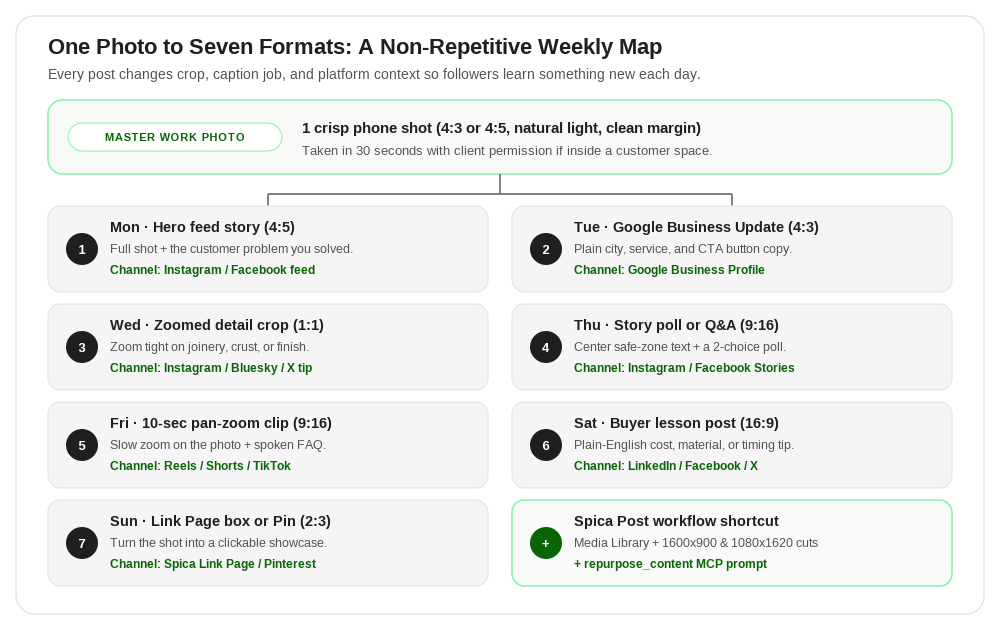
| Day and format | Recommended crop | Best channel fit | Specific job of the post |
|---|---|---|---|
| 1 · Monday: Hero feed story | 4:5 portrait (1080x1350) |
Instagram Feed, Facebook Page | Share the complete finished result plus the real customer challenge you solved |
| 2 · Tuesday: Local Google update | 4:3 landscape (1200x900) |
Google Business Profile | Anchor city + service keywords in plain prose with a direct Book, Quote, or Call button |
| 3 · Wednesday: Detail craft crop | 1:1 square (1080x1080) |
Instagram, Bluesky, X | Zoom tight on one finish detail (joinery, glazing, stitching, plating) to teach why quality lasts |
| 4 · Thursday: Story poll or Q&A | 9:16 vertical (1080x1920) |
Instagram Stories, Facebook Stories | Place a 2-choice poll or question box in the center safe zone to spark quiet replies |
| 5 · Friday: 10-sec Ken Burns clip | 9:16 vertical (1080x1920) |
Reels, YouTube Shorts, TikTok | Add a slow pan-zoom across the photo paired with a calm 10-second spoken answer to a buyer FAQ |
| 6 · Saturday: Plain-English buyer lesson | 16:9 landscape (1600x900) |
LinkedIn, Facebook, X | Explain realistic timelines, material choices, or cost drivers buyers should know before hiring |
| 7 · Sunday: Link Page showcase or Pin | 2:3 vertical (1080x1620) |
Spica Link Page box, Pinterest | Turn the best crop into an evergreen clickable card pointing straight to quotes or orders |
Format 1: Hero feed post with the real customer story
Open Monday with the widest, clearest presentation of the finished result. Skip vague captions like “Happy Monday! Love how this turned out!” Instead, name the real starting problem in sentence one, explain two thoughtful choices you made in sentence two, and close with a simple next step for neighbors facing the same need.
Format 2: Google Business Profile update with city, service, and CTA button
Tuesday turns the exact same photo into a high-intent local search signal. Following Google Business Profile photo guidance and Google Business Profile post instructions, crop to clean 4:3 landscape so the focal subject sits dead center inside Google’s preview thumbnail, skip hashtags completely, weave in your city and exact service name naturally, and attach Google’s built-in Call, Learn More, or Book button.
Format 3: Zoomed-in detail crop as a craft or quality lesson
On Wednesday, pinch-zoom into 30 to 40 percent of the original high-resolution photo to isolate one piece of craftsmanship ordinary buyers rarely notice until someone points it out: flush cabinet hinge alignment, crisp butter layers on a laminated croissant, tidy electrical panel labeling, or neat mitered baseboards. Because the composition looks completely different from Monday’s wide view, followers experience it as an expert mini-lesson rather than a rerun.
Format 4: Instagram or Facebook Story poll with safe-zone text
Thursday shifts from broadcast to low-friction conversation. Place the photo in a 9:16 Story canvas (either zoomed cleanly or set cleanly on a solid white or ink background card), keep all text and interactive stickers inside the middle 60 percent safe zone (leaving clear breathing room above the bottom reply bar and below the top username header), and ask a genuine two-choice poll that reveals buyer preferences: “Brushed brass or matte black hardware?” or “Sourdough boule or rosemary focaccia for Saturday morning?”
Format 5: 10-second Ken Burns pan-zoom short clip with spoken FAQ
Many small businesses and creators dread setting up tripods and speaking on camera. A slow Ken Burns pan or subtle zoom across one sharp still photo takes two minutes in any phone editor, carries zero camera shyness, and performs well when paired with a helpful 10-second spoken voiceover answering a question you already hear three times a week. Add crisp centered captions so silent scrollers read every word effortlessly.
Format 6: LinkedIn or Facebook plain-English buyer lesson
Saturday converts visual proof into practical authority. Pair the 16:9 landscape crop with a thoughtful three-paragraph breakdown explaining how a smart customer plans, budgets, or prepares for this exact purchase. Commercial decision-makers, homeowners planning bigger projects, and referral partners bookmark honest buyer checklists far more often than promotional flyers.
Format 7: Link Page showcase box or evergreen Pinterest pin
Finally, give your best work a permanent shelf life beyond fast-moving social feeds. Drop the image into a highlighted showcase box on your Link Page (“Recent Maple Kitchen Remodel · Request a Similar Quote”) with a direct link to your booking or order form, or save a tall 1080x1620 (2:3) graphic to a topic-specific board on Pinterest where shoppers actively plan projects months ahead.
Full worked example: one finished kitchen cabinet photo turned into seven posts
To see how natural and non-repetitive this looks in practice, picture a local cabinetmaker in Columbus finishing a compact white-oak kitchen pantry wall. After receiving explicit written permission from the homeowner (with zero family photos, personal papers, or street numbers anywhere in view), the owner takes one sharp 4:3 daylight photo standing six feet back with clean white walls framing the edges.
Here are the exact seven weekly outputs built from that single photo.
1. Monday hero feed post (Instagram and Facebook, 4:5 crop)
Tight pantry corners usually become dark catch-alls where half the groceries expire out of sight. This week in Columbus, we replaced wire builder shelving with custom white-oak pull-out drawers and a recessed coffee alcove (shared with the homeowner’s written permission).
Every shelf slides out full-extension so nothing disappears in the back corner, and the matte clear finish wipes down cleanly after morning spills. Planning a kitchen storage upgrade this season? Tap our bio link to request a free in-home measurement.
2. Tuesday Google Business Profile update (4:3 centered crop)
Custom white-oak pantry cabinets and full-extension pull-out drawers built and installed for a Columbus homeowner this week. Designed for busy family kitchens that need practical everyday storage without tearing down walls. Serving Columbus, Dublin, and Westerville with measured shop quotes. Tap Learn More to view our cabinet options and schedule an estimate.
3. Wednesday detail crop tip (Instagram, Bluesky, or X, 1:1 close-up on drawer corner)
Zoomed in on the part most people skip when comparing cabinet quotes: dovetail solid-maple drawer boxes paired with soft-close undermount glides.
Staples and thin side tracks feel fine on day one, then wobble once you load ten heavy cast-iron skillets and canned goods. Checking drawer box joinery and glide weight ratings before signing saves years of sticky doors.
4. Thursday Story poll (Instagram and Facebook Stories, 9:16 safe-zone frame)
Top text (centered in safe zone): “Quick kitchen debate for Columbus homeowners:”
Poll sticker options: “Natural white oak warmth” vs. “Classic painted sage or cream”
Bottom safe-zone note: “Reply with your kitchen layout if you want honest sizing tips.”
5. Friday 10-second pan-zoom clip (Reels, Shorts, or TikTok, 9:16 slow pan + voiceover)
Spoken voiceover (10 seconds, gentle slow zoom onto the pull-out coffee alcove): “The number-one question we get on custom pantry cabinets is how long your kitchen stays torn up. Because we build and finish everything in our Columbus shop first, actual installation in your kitchen usually takes just two clean days. Tap the link in bio for our plain sizing checklist.”
6. Saturday buyer lesson post (LinkedIn or Facebook, 16:9 landscape crop)
Three things homeowners rarely hear early enough when budgeting custom cabinetry:
If you are planning a remodel in Central Ohio over the next six months, happy to answer practical planning questions in the comments.
7. Sunday Link Page showcase card and evergreen Pinterest pin (2:3 crop)
Link Page box title: “Custom White-Oak Pantry & Coffee Alcove (Columbus)”
Box copy: “Full-extension maple drawers built in our shop and installed in two days. Tap to see typical dimensions and request a local measurement.”
Button label: “Request a cabinet estimate”
How the exact same seven slots work for a retail bakery or café
Notice the formula works just as smoothly for a product business without changing a single step. Take one clean morning daylight photo of a fresh tray of sourdough cinnamon rolls on parchment paper:
- Monday (4:5): Story of the overnight cold ferment and morning bake times.
- Tuesday (4:3 Google): Today’s fresh bakery hours, city neighborhood, and pre-order CTA.
- Wednesday (1:1 detail zoom): Tight close-up of the caramelized swirl and cream-cheese glaze explaining why real cultured butter matters.
- Thursday (9:16 Story poll): “Warm glaze on top or frosting on the side?”
- Friday (9:16 10-sec pan clip): Voiceover answering “Can I pre-order a dozen for Sunday brunch?”
- Saturday (16:9 Facebook/LinkedIn): Honest note on how local office teams order Friday pastry trays 48 hours ahead.
- Sunday (Link Page / 2:3 Pin): Permanent “Weekend Pastry Pre-Order” photo box at the top of your Link Page.
Aspect ratios, safe zones, and platform limits at a glance
Snapshot verified November 2026. Keeping aspect ratios clean protects your photo from awkward automated trimming and keeps every caption readable before the “more” fold.
| Network placement | Recommended aspect ratio | Pixel target | Visual safe-zone and text limit reminder |
|---|---|---|---|
| Instagram Feed | 4:5 portrait (or 1:1) | 1080x1350 |
Put the key hook in the first ~125 characters before the caption fold |
| Instagram / Facebook Stories & Reels | 9:16 vertical | 1080x1920 |
Keep text and stickers inside the center ~60% safe band away from top header and bottom UI |
| Google Business Profile | 4:3 landscape | 1200x900 |
Keep focal subject centered; write plain local copy with zero hashtags and no phone number in body text |
| X and Bluesky | 16:9 landscape | 1600x900 |
Sharp horizontal card framing; Bluesky caps at 300 graphemes and X at 280 characters (standard) |
| 16:9 or 4:5 | 1600x900 or 1080x1350 |
Front-load the takeaway inside the opening ~210 characters before “see more” | |
| 2:3 vertical | 1080x1620 |
Tall vertical framing earns maximum feed height; pair with clear descriptive title and destination link |
Three cropping mistakes that ruin good phone photos
Avoid these three tiny habits to keep every derivative frame sharp:
- Shooting so tight that nothing can be cropped later. Always capture wide first; you can always zoom in cleanly on Wednesday, whereas you can never invent missing wall or countertop space around an overly tight shot.
- Hiding Story text behind interface icons. Test every 9:16 frame visually before posting so poll stickers and headlines sit comfortably in the middle third rather than colliding with your profile avatar at the top or the message bar at the bottom.
- Leaving alt text blank across reused files. Adding one clear, plain-English description of what the photo shows improves accessibility for screen-reader users and helps search engines understand your visual proof across channels.
How Spica Post streamlines one-photo repurposing (and honest trade-offs)
Manual resizing, re-uploading the same JPEG six times, and rewriting copy from scratch across separate browser tabs quickly turns a smart repurposing habit back into an hour-long chore. A clean central workflow keeps one master asset moving smoothly without extra busywork.
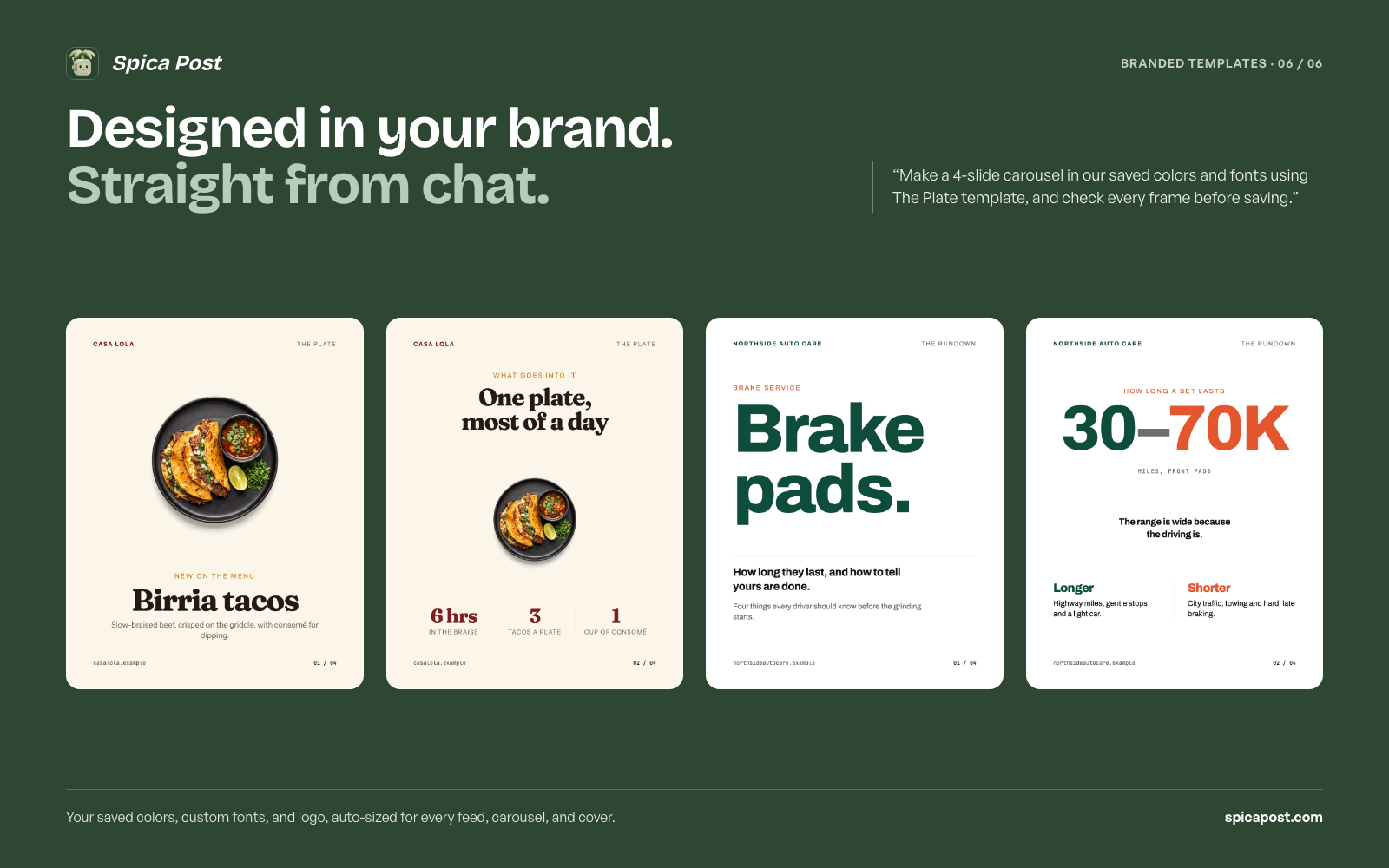
Media Library, automatic channel cuts, and the repurpose_content MCP prompt
On Spica Post, three connected features are designed specifically around making one real photo go farther for small businesses and creators:
- Upload once to the Media Library (
/media): Drop your clean phone photo in once, attach reusable tags (such as"pantry-install"or"cinnamon-rolls") and descriptive alt text, and pull that exact saved file straight into the composer or your Link Page editor whenever you need a fresh angle without digging back through your camera roll. - Automatic channel cuts from branded templates: When you turn a saved photo into a designed portrait template on Studio, Pro or Agency plans, Spica Post automatically renders companion channel cuts alongside it: a crisp
1600x900landscape cut tailored for X and Bluesky plus a1080x1620vertical cut sized cleanly for Pinterest, all keeping your brand colors and typography consistent. - Guided
repurpose_contentMCP prompt with your assistant: Connect Claude, ChatGPT, Codex, or another MCP-compatible assistant through Spica Post’s MCP link and invoke the built-inrepurpose_contentworkflow prompt with your saved photo ID and three plain facts about the job. Your assistant drafts tailored, limit-checked variants across your active networks viadrafts_create_batch(and queues them viaschedule_batchon Studio/Pro once you approve), so you edit human details in minutes rather than staring at seven blank boxes.
You can also validate exact post lengths, weighted character counts, and image constraints across networks for free anytime in our no-login social media tools, or pair this weekly rhythm with our guide on how to batch a month of social media posts.
Honest November 2026 trade-offs to weigh before switching
Before choosing any tool for repurposing, verify what publishes automatically today versus what still takes a brief native paste. Here is Spica Post’s exact November 2026 status:
- Live today: Your shared Media Library (with reusable tags and alt text), branded templates with automatic
1600x900X/Bluesky and1080x1620Pinterest channel cuts, therepurpose_contentMCP workflow prompt and batch drafting tools, a branded Link Page with clickable photo showcase boxes and SVG QR codes,/l/click-tracked short links to see which repurposed angle earns the most visits, and live direct publishing plus Auto-crosspost across X, LinkedIn personal profiles, Bluesky (with live Unified Inbox replies), and Mastodon. - Built and completing network review: Spica Post’s publishing connectors for Google Business Profile (API approved and enabled in production, awaiting first live service-area profile verification), Instagram, Facebook Pages, Threads (completing Meta App Review), TikTok (submitted for app review and audit), YouTube (OAuth app verification approved; finishing compliance audit), and Pinterest (awaiting Standard access) are built and completing platform review or verification. While those approvals finalize, use Spica Post to store your master photo, generate your channel cuts, draft all seven platform-specific captions in one sitting, publish straight to LinkedIn, X, Bluesky, Mastodon, and your Link Page, and copy-paste your ready Instagram, Facebook, and Google drafts natively in under five minutes. Compare flat workspace options anytime on our pricing page.
A 20-minute Monday repurposing checklist you can repeat every week
Keep this seven-step loop taped above your desk or saved in your notes so one crisp photo reliably fills your entire week:
- Pick one crisp photo from the past seven days (2 minutes): Choose a daylight shot with clean margins and confirm explicit written customer permission if it shows a client’s property or identifiable faces.
- Upload once to your Media Library and add alt text (2 minutes): Tag it clearly by service or product so you can find it again next season.
- Save three distinct crops (4 minutes): Full 4:5 hero view, 4:3 centered Google crop, and one tight 1:1 craft detail crop (plus automatic
1600x900and1080x1620template cuts if you use branded layouts). - Draft six distinct text angles in one sitting (7 minutes): Customer story, local Google update, craft detail lesson, two-choice Story poll, 10-second spoken FAQ script, and plain-English buyer lesson.
- Create the 10-second pan-zoom clip on your phone (3 minutes): Add a slow zoom across the master photo, speak your 25-word FAQ clearly, and drop captions inside the center safe zone.
- Pin the showcase card onto your Link Page (1 minute): Update one featured box with the photo and a direct quote, booking, or order link using a tracked short link.
- Review limits, schedule or queue, and get back to real work (1 minute): Double-check every network’s character fold and safe zone, approve the week, and close your social apps until next Monday.
Next time you finish a job you are proud of or pull a fresh tray out of the oven, pause for thirty seconds, take two steps back in clean daylight, and grab one sharp master photo. You just built an entire week of calm, non-repetitive marketing before lunch.
Questions people ask
- Will followers get annoyed if a small business reuses the same work photo across a week?
- Only when you copy and paste the exact same uncropped picture and identical caption everywhere. When you vary three things together (the visual crop or subtle motion, the educational or booking angle in the caption, and the platform format), each post reads as a fresh piece of useful information.
- How should I frame a single phone photo so it survives seven different crops?
- Take one clean step back in bright natural daylight, wipe your lens, shoot at full resolution in standard 4:3 or 4:5 orientation, and leave generous uncluttered margin around your main subject. That extra breathing room lets you crop cleanly into vertical 9:16 Stories, 2:3 Pinterest pins, 1:1 close-ups, and 16:9 landscape updates without cutting off key details.
- Can one still photo really become a short-form video for Reels, Shorts, or TikTok?
- Yes. Apply a gentle 8-to-10-second slow zoom or horizontal pan across the high-resolution image, record a natural one-question voiceover answering a real buyer FAQ, and place concise captions inside the center safe zone. Viewers stay because the spoken answer helps them, not because of flashy transitions.
- Do I still need customer permission when repurposing a photo taken at a client job?
- Yes. Obtain explicit written permission from the customer, homeowner, or featured person once before publishing any derivative crop, Story, or short clip, and keep family portraits, street numbers, license plates, and private paperwork completely outside every frame.
- How does Spica Post help repurpose one photo across channels faster?
- Upload the original image once into Spica Post's Media Library with reusable alt text and tags. Branded portrait templates automatically generate a 1600x900 X and Bluesky landscape cut plus a 1080x1620 Pinterest cut, and the guided repurpose_content MCP prompt lets your assistant draft tailored, limit-checked posts for each network while you keep final approval.
Sources
- Google Business Profile Help: Manage photos and videos for your Business Profile
- Google Business Profile Help: Create posts on your Business Profile
- Spica Post How It Works: Media Library, channel cuts, and workflow
- Spica Post MCP and AI Assistant Integration (repurpose_content prompt)
- Spica Post Free Social Media Character and Post Checker